

Common questions answered in this guide:
How do I activate my Keep2Share Premium service for the first time using an activation coupon?
How do I renew or extend an expired Keep2Share Premium membership with a voucher code?
The steps are identical whether you are setting up a brand-new Keep2Share account or extending your current premium plan.
Follow the step-by-step visual guide below to redeem your reseller voucher code and unlock maximum download speeds.
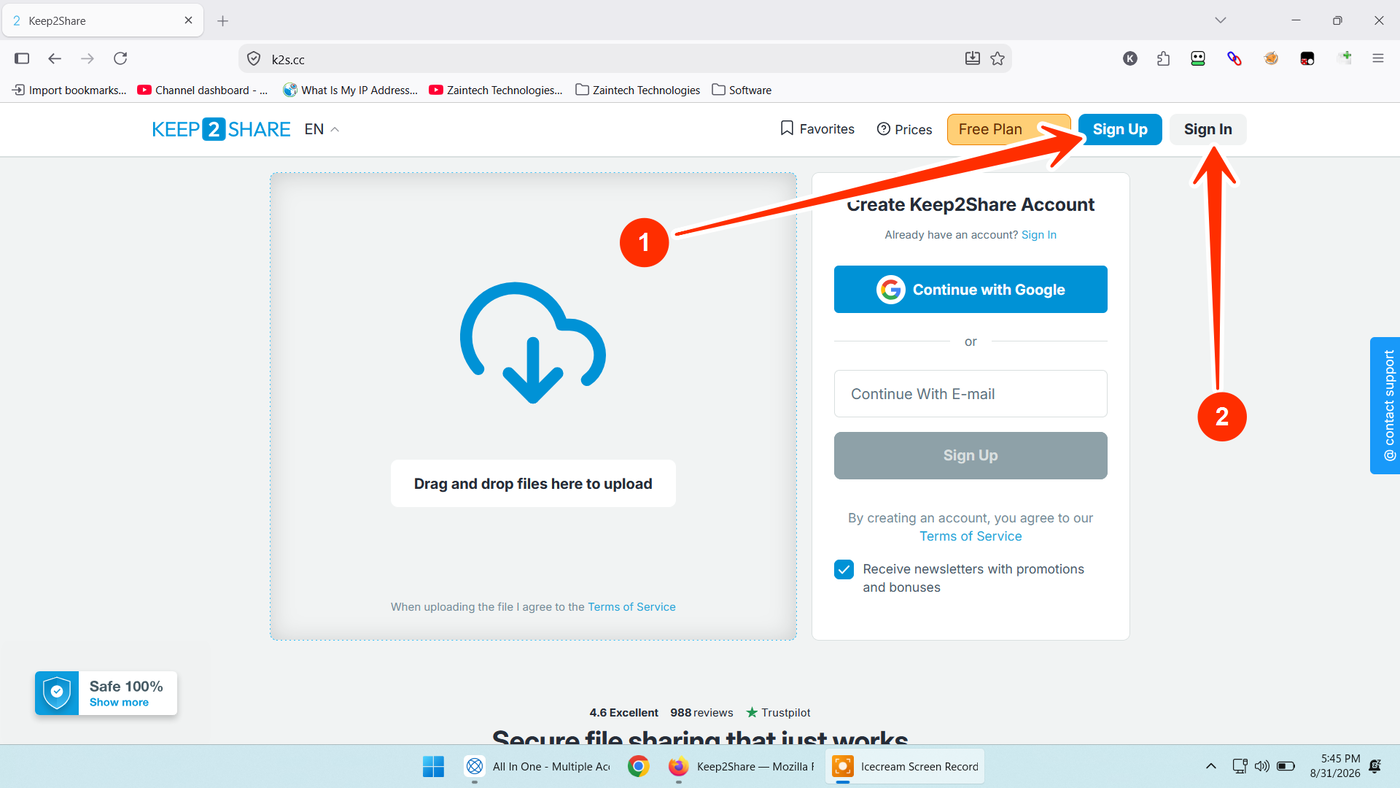
Step 1: Open Keep2Share & Sign In or Register
Visit the official Keep2Share website:
New Users: Click the blue "Sign Up" button (arrow 1) to create a new account using your email or Google.
Existing Users: Click the "Sign In" button (arrow 2) to log into your registered account.
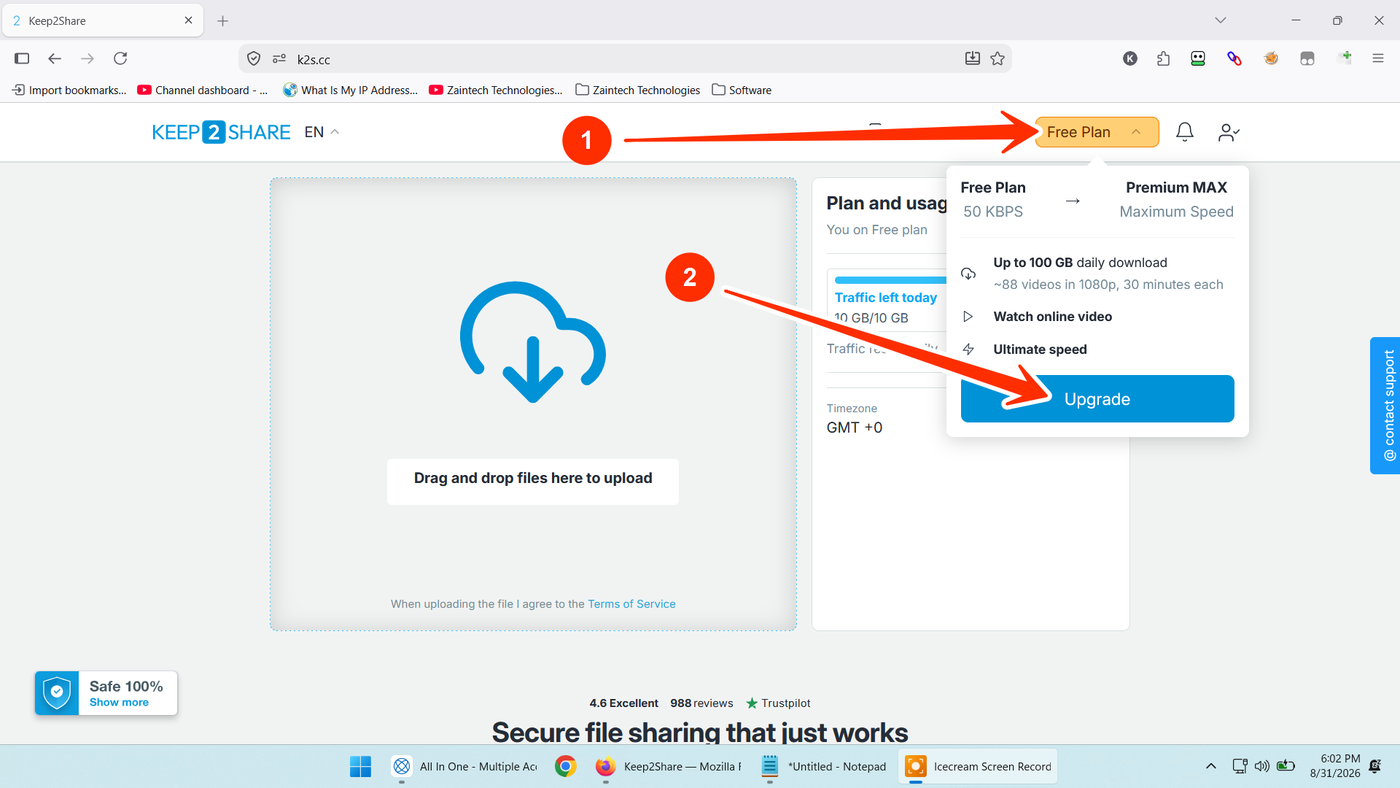
Step 2: Open the Account Plan Menu & Click Upgrade
Once signed in to your account:
Locate the yellow "Free Plan" (or current plan) button at the top-right header next to your profile icon (arrow 1).
Click the yellow button to open the dropdown card, then click the blue "Upgrade" button (arrow 2).
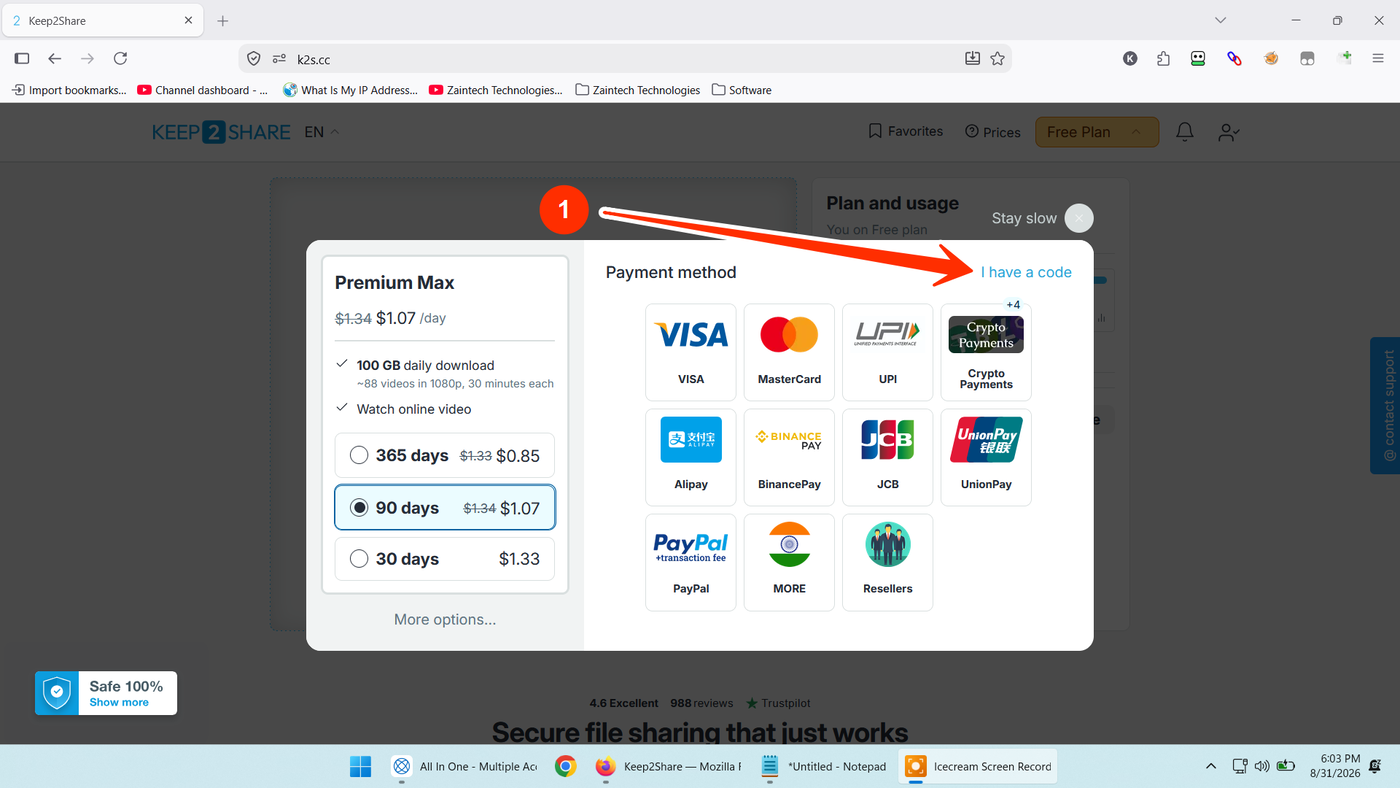
Step 3: Select "I have a code"
In the payment popup window that appears:
Look at the top-right section above the payment methods.
Click the blue text link that says "I have a code" (arrow 1).
(Shortcut: You can also navigate directly to the activation portal at https://k2s.cc/reseller-code while logged in).
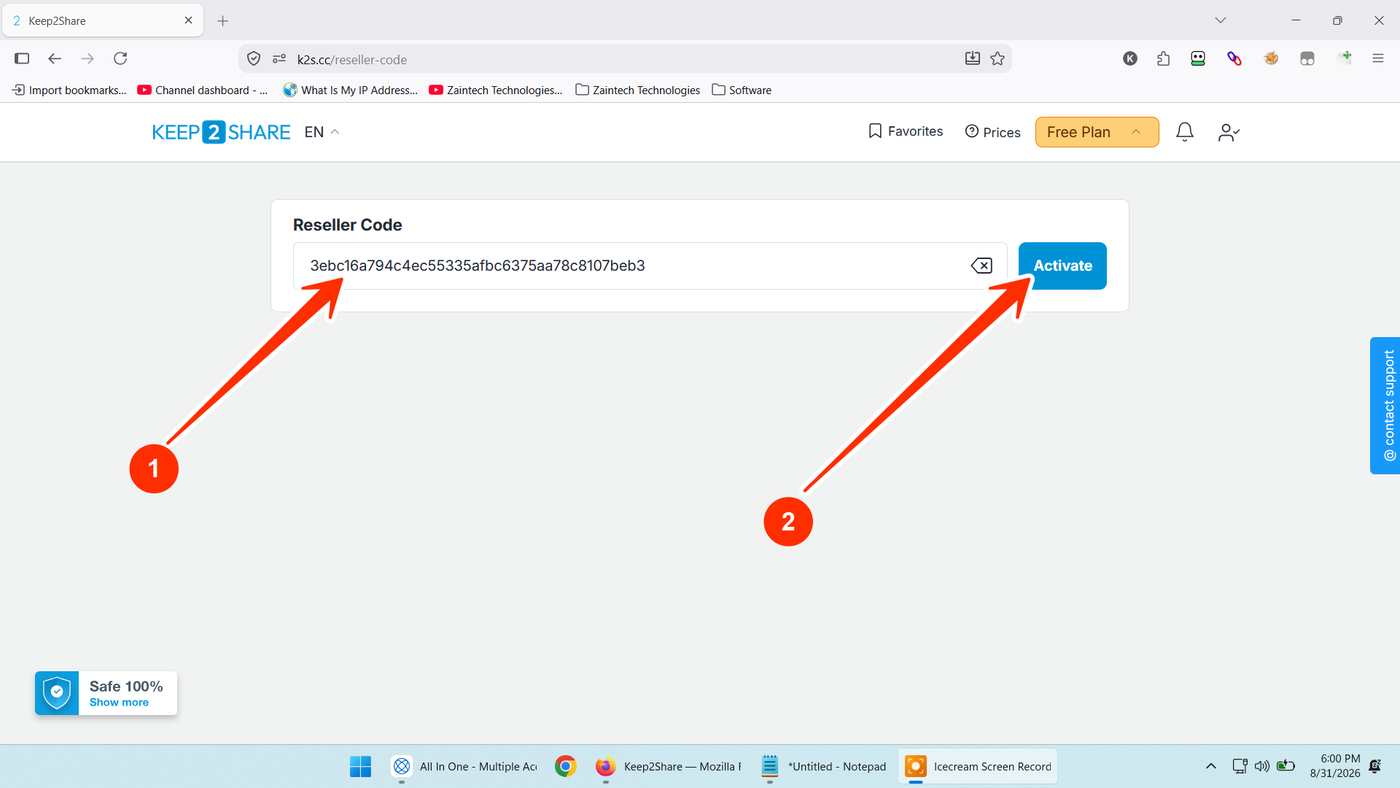
Step 4: Enter Your Reseller Code & Activate
On the activation screen:
In the Reseller Code input box, paste your official activation voucher key (arrow 1).
Tip: Make sure there are no accidental spaces before or after the code.
Click the blue "Activate" button (arrow 2).
Your Keep2Share Premium / Premium PRO subscription will be applied instantly to your account, giving you instant access to high-speed downloads, parallel downloads, and video streaming.
Need Help or Have Questions?
If you encounter any issues while redeeming your voucher code, contact our support team with your Order ID:
WhatsApp Support: https://z-t.biz/whatsapp
Telegram Support: https://z-t.biz/telegram