

Common questions answered in this guide:
How do I activate my FileBoom Premium service for the first time using an activation coupon?
How do I renew or extend an expired FileBoom Premium membership with a voucher code?
The redemption steps are identical whether you are activating a new FileBoom account or renewing an existing premium plan.
Follow the step-by-step visual guide below to redeem your reseller voucher code and unlock maximum cloud download speeds.
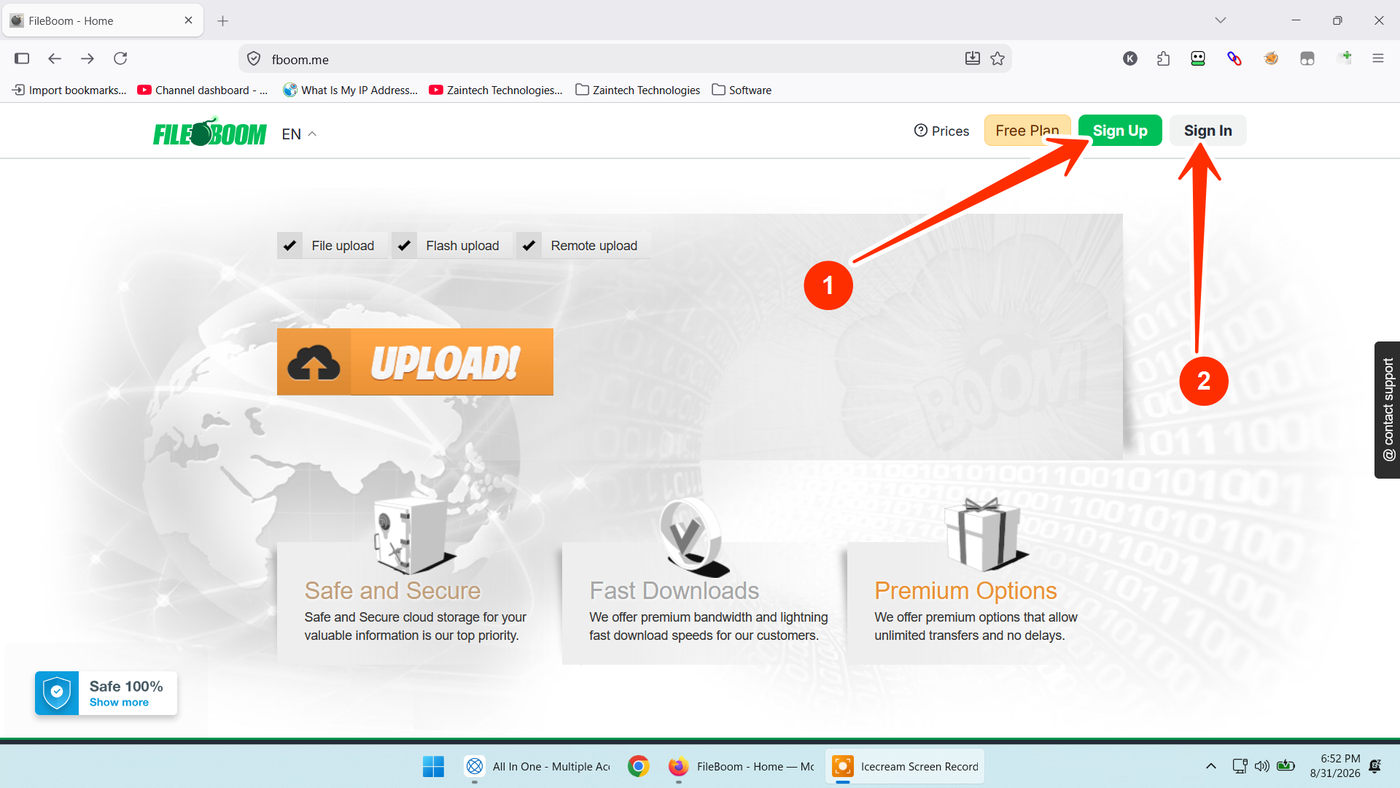
Step 1: Open FileBoom & Sign In or Register
Visit the official FileBoom website:
New Users: Click the green "Sign Up" button (arrow 1) to create an account using your email or Google account.
Existing Users: Click the "Sign In" button (arrow 2) to log into your account.
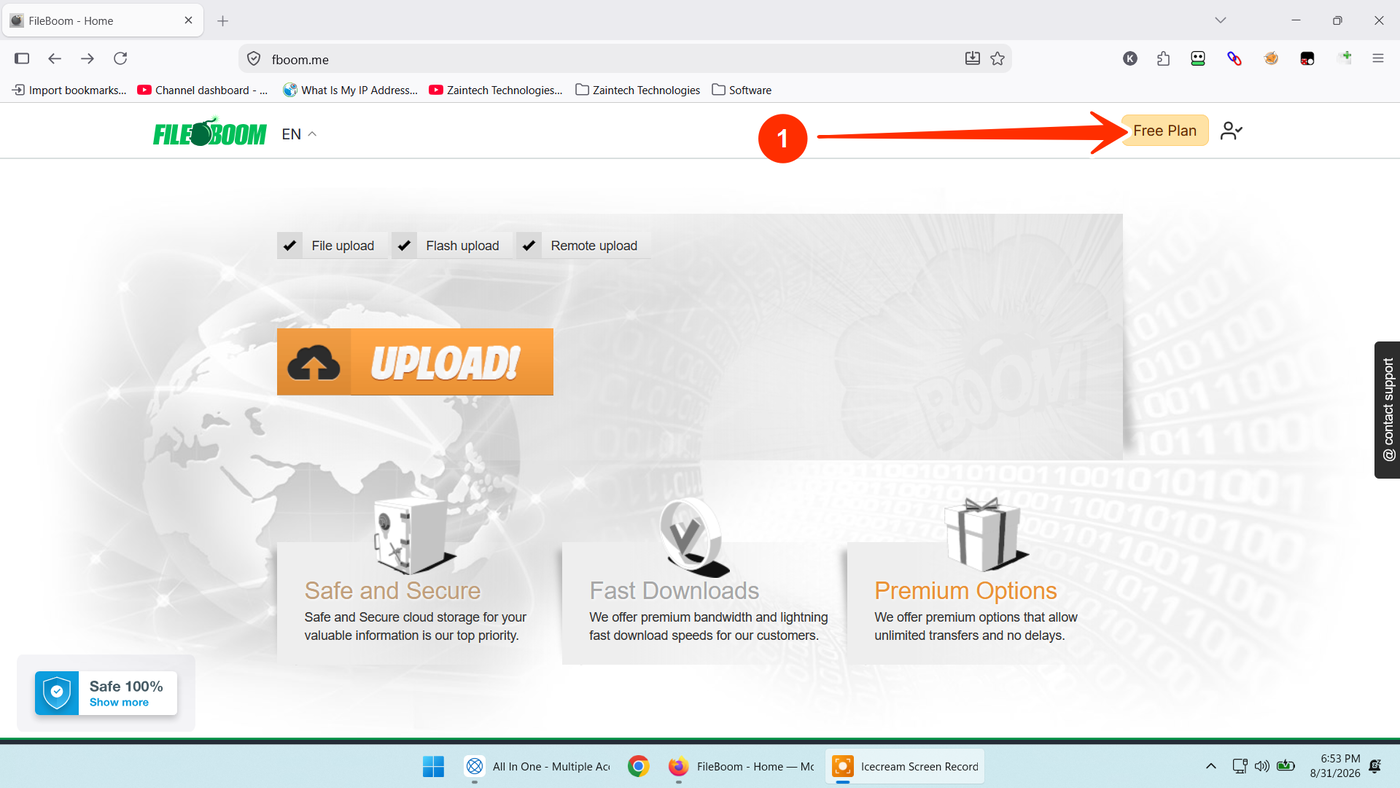
Step 2: Click on Free Plan
Once signed in to your account dashboard:
Locate the yellow "Free Plan" button at the top-right header next to your user avatar (arrow 1).
Click the button to open the upgrade/payment options popup.
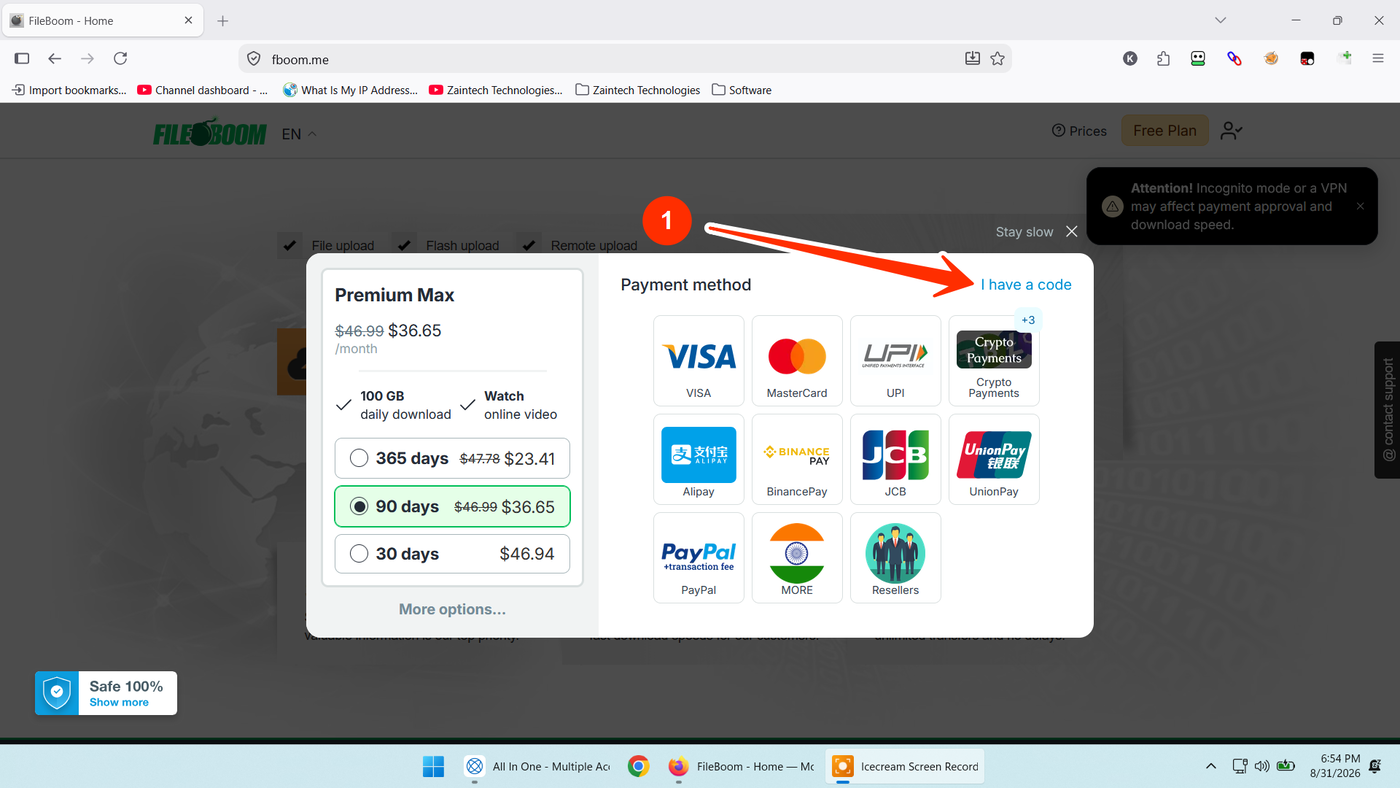
Step 3: Select "I have a code"
In the payment popup window that appears:
Look at the top-right section above the listed payment methods.
Click the blue text link that says "I have a code" (arrow 1).
(Direct Shortcut: You can also open the activation page directly at https://fboom.me/reseller-code while signed in).
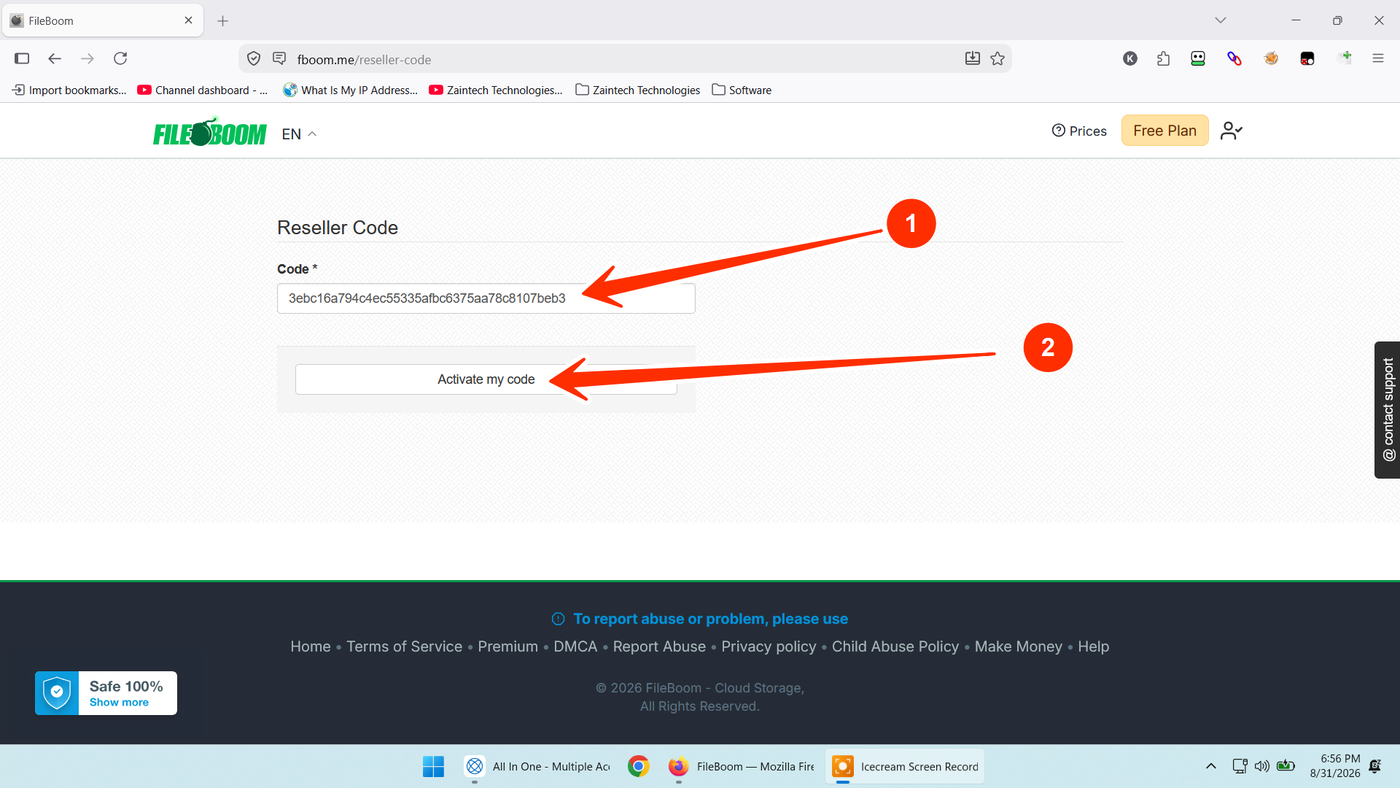
Step 4: Enter Your Reseller Code & Activate
On the Reseller Code redemption page:
Paste your official voucher key into the Code * box (arrow 1).
Tip: Ensure there are no accidental spaces before or after the code.
Click the "Activate my code" button (arrow 2).
Your FileBoom Premium / Premium PRO access will be credited instantly to your account, unlocking maximum download bandwidth, instant file streaming, and parallel download support.
Need Help or Have Questions?
If you encounter any issues while redeeming your code, contact our support team with your Order ID:
WhatsApp Support: https://z-t.biz/whatsapp
Telegram Support: https://z-t.biz/telegram