

Common questions and topics answered in this guide:
How do I install the IDM Integration Module extension in Google Chrome?
Why is IDM not automatically taking over downloads or showing the video download panel in Chrome?
How do I manually install or re-enable the IDM extension from the Chrome Web Store?
How to allow the IDM extension in Incognito mode or fix a disabled/greyed-out extension?
To download videos, audio, and files automatically using Internet Download Manager (IDM) while browsing in Google Chrome, the "IDM Integration Module" extension must be installed and enabled.
Follow the step-by-step instructions below to install and configure it properly.
Step 1: Install the Official IDM Extension from Chrome Web Store
Open Google Chrome and install the extension directly from the official Chrome Web Store using the link below:
Click Here to Install IDM Integration Module from Chrome Web Store
Click the link above to open the official extension page.
Click the blue "Add to Chrome" button.
When the confirmation popup appears, click "Add extension".
Step 2: Enable the Extension in Chrome Settings
If the extension is already installed but not working, make sure it is turned ON:
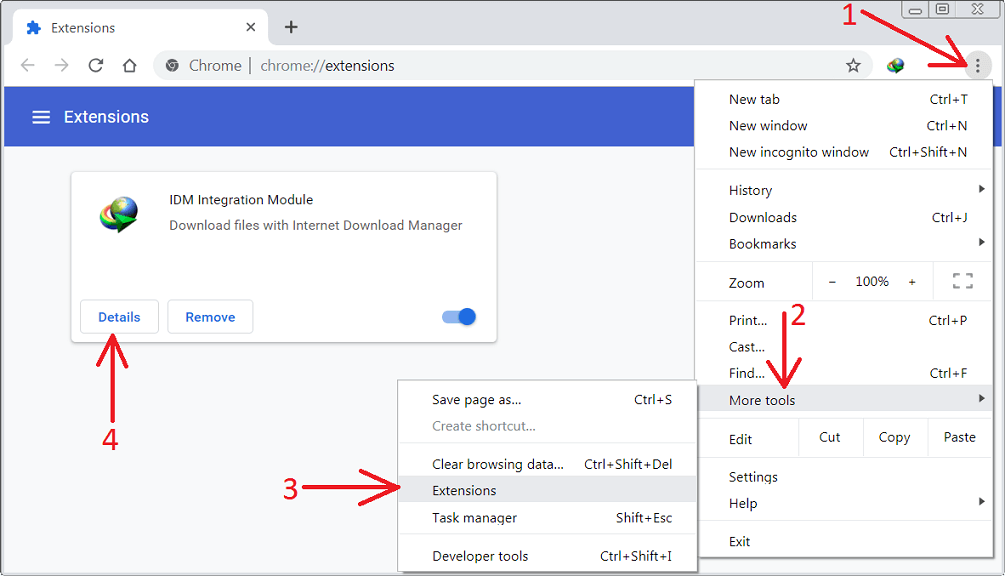
In Chrome, click the Three Dots Menu (⋮) at the top right → Extensions → Manage Extensions (or type
chrome://extensions/in your address bar and press Enter).Locate IDM Integration Module.
Toggle the switch to ON (Blue).
Step 3: Configure Advanced Settings (Incognito & File Access)
To make IDM work seamlessly across all browsing modes:
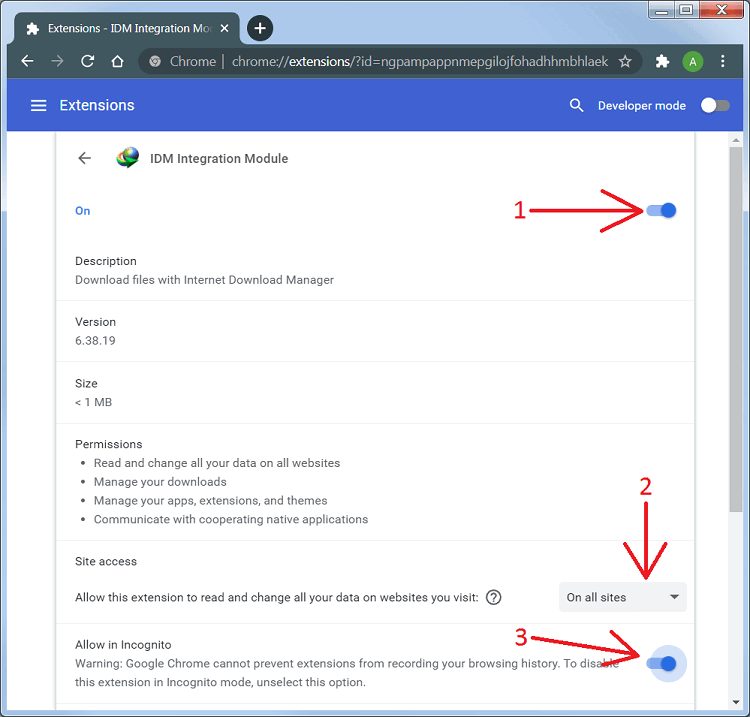
On the
chrome://extensions/page, click the Details button under the IDM Integration Module.Turn ON the toggle for "Allow in Incognito" if you want IDM to capture downloads in private windows.
Turn ON the toggle for "Allow access to file URLs" to let IDM handle local file links.
Alternative Method: Manual Installation from the IDM Folder
If you cannot access the Chrome Web Store, you can add the extension manually from your computer:
Open Chrome and navigate to
chrome://extensions/.Enable the Developer mode toggle in the top-right corner.
Open File Explorer on your PC and navigate to the IDM installation directory:
C:\Program Files (x86)\Internet Download Manager(orC:\Program Files\Internet Download Manager).Locate the file named
IDMGCExt.crx.Drag and drop the
IDMGCExt.crxfile directly onto thechrome://extensions/page in your browser and confirm the installation.
Verify IDM Browser Integration Settings
Finally, ensure IDM is configured to monitor Chrome:
Open the main Internet Download Manager application.
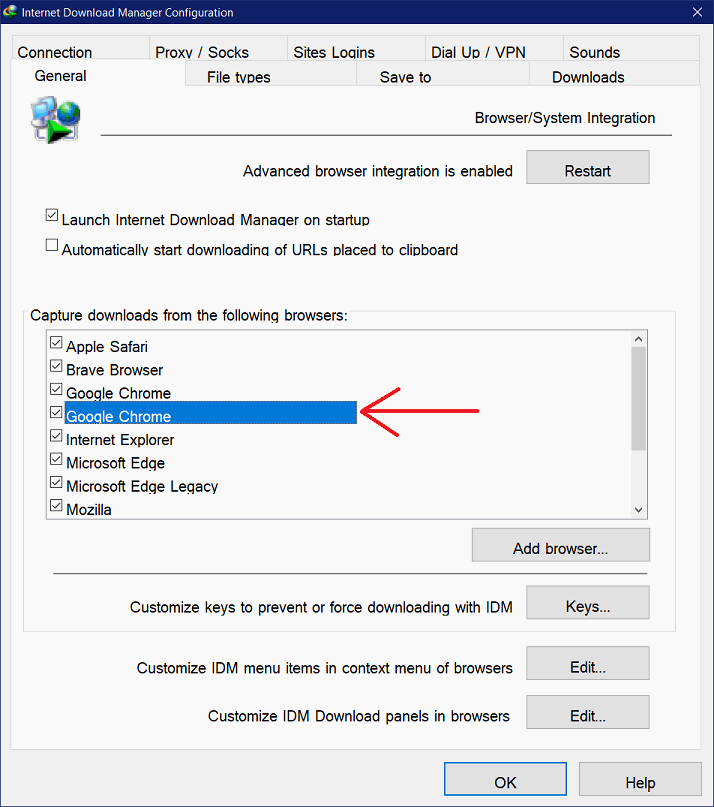
Click Options (gear icon) → go to the General tab.
Ensure "Use advanced browser integration" is checked.
Verify that Google Chrome is checked in the browser list.
Click OK and restart Chrome.
Official Internet Download Manager (IDM) Licenses
Get maximum download speeds, automatic browser integration, and uninterrupted full-version access with official genuine licenses:
Feature | IDM 1-Year License | IDM Lifetime License |
License Duration | 1 Year Full Access | Permanent (Never Expires) |
Official Updates | 1 Year of Free Upgrades | 3 Full Years of Free Upgrades |
Device Scope | 1 Windows PC | 1 Windows PC |
Key Recovery Support | Full 1-Year Assistance | Lifetime Support |
Recommended For | Students & Short-Term Projects | Everyday Users & Power Downloaders |
Direct Order Link |
Need Technical Help? If the extension still does not capture your downloads, contact our support team for instant troubleshooting:
WhatsApp: https://z-t.biz/whatsapp
Telegram: https://z-t.biz/telegram