

Common questions answered in this guide:
Which Pakistani payment methods and mobile wallets are accepted by Zaintech Technologies?
How do I pay using EasyPaisa, JazzCash, NayaPay, or SadaPay?
Can I transfer payment from any Pakistani commercial bank via Raast or 1Link?
Where do I find the Transaction ID (TID) on my payment receipt, and why is it mandatory?
What details must I share with support for instant order authorization?
Zaintech Technologies supports all major Pakistani payment networks, allowing local customers to settle orders in Pakistani Rupees (PKR) quickly and securely.
Whether you hold a mobile wallet or an account at any commercial bank in Pakistan, you can complete your transaction within minutes.
Supported Pakistani Payment Channels
You can pay your invoice using any of the following platforms:
Mobile Wallets: EasyPaisa, JazzCash, NayaPay, SadaPay
Instant Payment System: RAAST Network (Instant zero-fee interbank transfers)
Interbank Network: 1Link Interbank Funds Transfer (IBFT) from any commercial or microfinance bank across Pakistan (HBL, Meezan Bank, Bank Alfalah, MCB, UBL, Allied Bank, Standard Chartered, etc.)
Step 1: Place Your Order & Receive Account Details
Select your preferred local payment method at the website checkout screen.
Complete your order placement.
The specific bank account or wallet details (Account Title, Account Number, and IBAN/Raast ID) are displayed immediately on the checkout confirmation screen.
An automated Order Confirmation Email containing the exact payment instructions and total PKR amount is also delivered to your registered email address.
Step 2: Transfer the Exact Amount
Open your mobile wallet app (EasyPaisa, JazzCash, NayaPay, SadaPay) or your bank’s mobile/online banking app.
Select Bank Transfer, Wallet Transfer, or Raast Transfer as per the payment instructions received.
Input the provided account details, verify the account title (designated official title), and complete the payment.
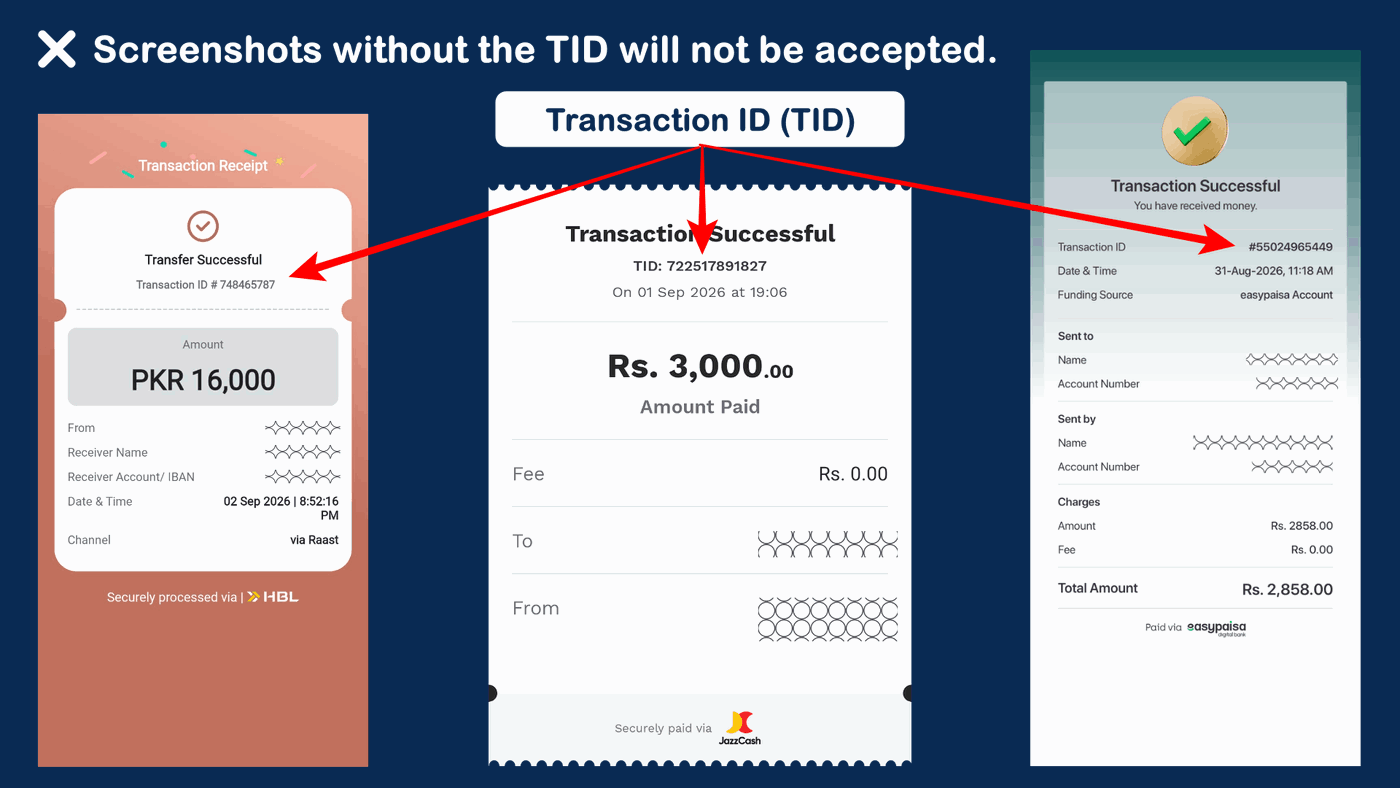
Step 3: Capture the Transaction Receipt Showing the Transaction ID (TID)
Mandatory Verification Notice:
A receipt screenshot without a visible Transaction ID (TID) cannot be verified by our billing team. Submitting an incomplete screenshot or a notification banner will delay your order authorization.
Always save or screenshot the official final receipt screen generated by your banking or wallet app:
Bank Transfer via Raast (Left): Shows the clear Transaction ID # (e.g.,
748465787).JazzCash Receipt (Center): Prominently displays TID (e.g.,
722517891827).EasyPaisa Receipt (Right): Displays the official Transaction ID (e.g.,
#55024965449).
Step 4: Submit Payment Proof for Instant Dashboard Authorization
To ensure our billing team authorizes your payment and releases your license key or voucher code within 5 to 10 minutes:
Copy your numeric Transaction ID (TID) as plain text.
Prepare your clear payment receipt screenshot.
Send your Website Order Number, the Transaction ID (TID) text, and the Screenshot to our official customer desk:
WhatsApp Support: https://z-t.biz/whatsapp
Telegram Support: https://z-t.biz/telegram
Once confirmed, your order status will be updated to Completed, and your digital keys will be accessible immediately inside your website account dashboard.