

Common questions answered in this guide:
How do I complete a payment to Zaintech Technologies using the MixPay merchant gateway?
How do I pay using Altcoins, Meme coins, or stablecoins like USDT across multiple networks?
How do I pay directly through my Binance Pay, Gate Pay, or KuCoin Pay exchange accounts?
What should I do after completing my cryptocurrency payment to verify my order instantly?
MixPay allows you to pay securely using over 120+ cryptocurrencies (including popular Altcoins and Meme coins) or directly through top crypto exchange pay systems like Binance Pay, Gate Pay, and KuCoin Pay.
Follow the comprehensive visual instructions below to choose your payment method and complete your order smoothly.
Checkout Overview (When Redirected to MixPay)
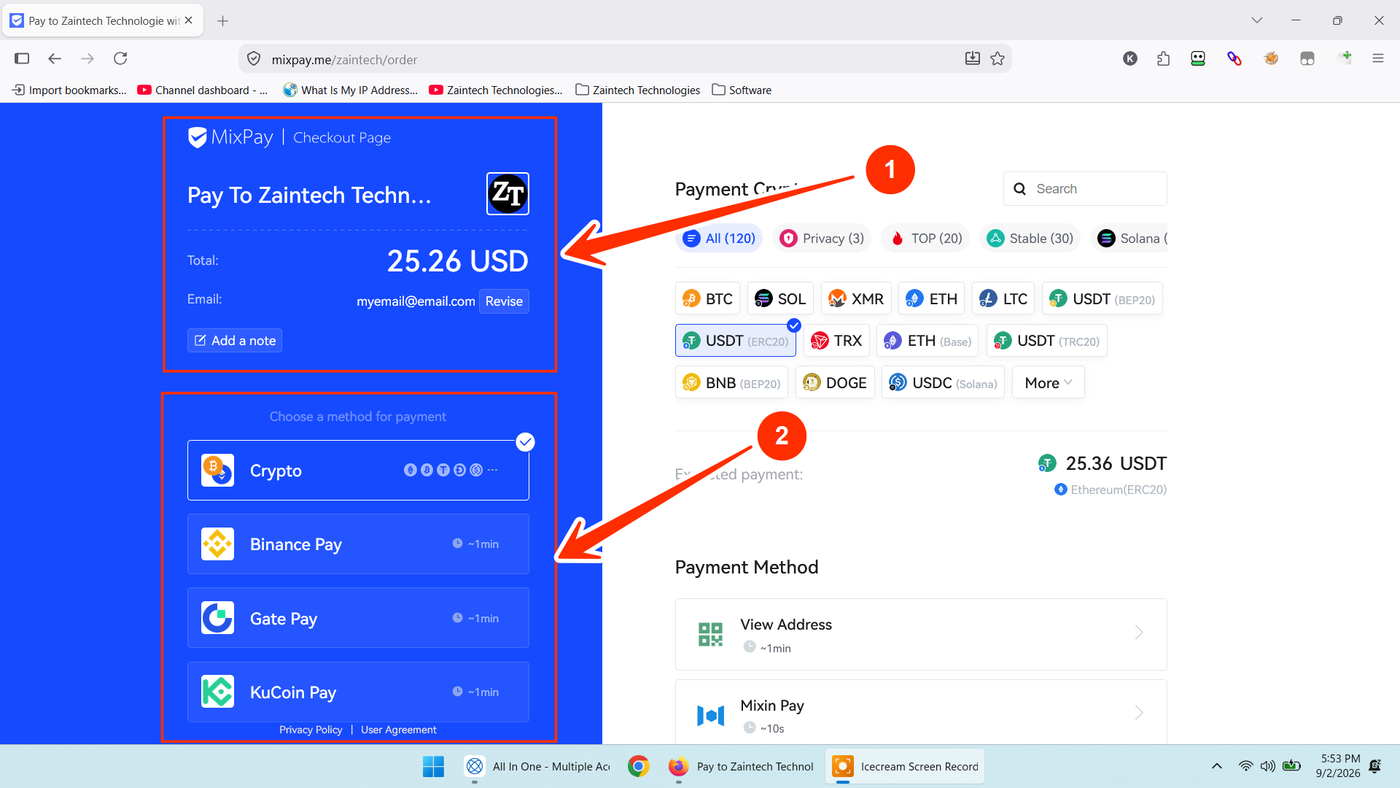
When you select the MixPay payment option on the Zaintech Technologies checkout, you are redirected to the secure MixPay Checkout Page:
Merchant Details (Top Left): Verify that the merchant name shows Pay To Zaintech Technologies along with our official logo and the MixPay branding header.
Order Verification: Confirm your Total (USD) amount and check the Email address displayed. A payment receipt and confirmation will be sent here upon successful settlement.
Choose a Method for Payment (Left Panel):
Crypto: Supports 120+ cryptocurrencies, Altcoins, and Meme coins (USDT, BTC, ETH, SOL, DOGE, TRX, etc.).
Binance Pay: Instant one-click checkout using your Binance wallet.
Gate Pay: Direct transfer using your Gate balance.
KuCoin Pay: Mobile QR scan and pay using the KuCoin App.
How to Pay via Crypto (Altcoins, Meme Coins & USDT)
Use this method if you want to send crypto from any self-custody wallet (Trust Wallet, MetaMask, Phantom) or standard exchange withdrawal address:
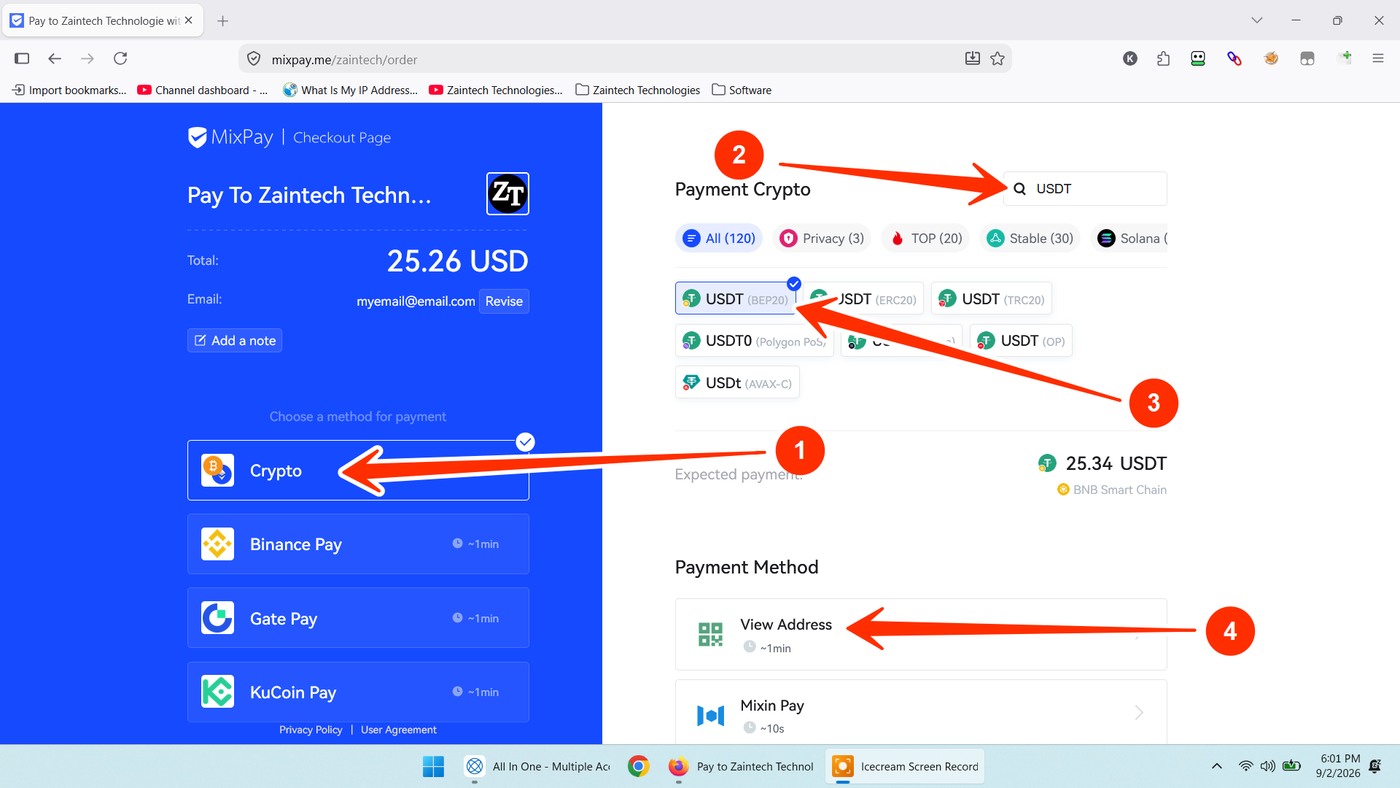
Click "Crypto" in the payment methods list on the left (arrow 1).
Look at the top-right search box titled "Search" (arrow 2). Enter the name or symbol of the coin you wish to pay with (e.g.,
USDT,SOL,DOGE,SHIB,PEPE).If you search for multi-chain tokens like USDT, all available network choices will appear (e.g., BEP20, TRC20, ERC20, Polygon, Arbitrum). Click to select your preferred network (arrow 3), such as USDT (BEP20).
Click the "View Address" button at the bottom right (arrow 4).
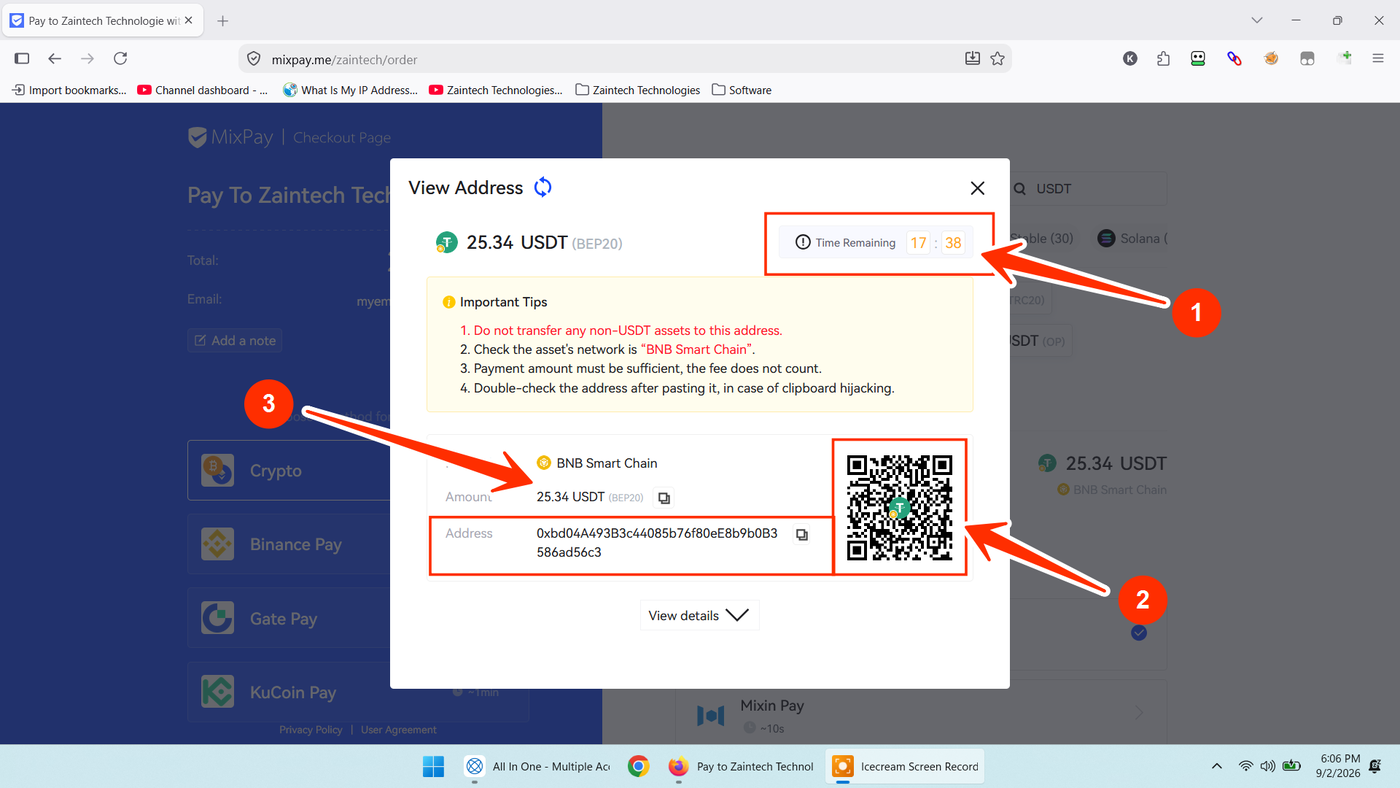
A secure transfer popup window will appear on screen:
Time Remaining (Countdown Timer): Note the active timer at the top right (arrow 1). Complete the transfer before this timer expires to lock in the real-time conversion rate.
Deposit Address & QR Code: Scan the displayed QR code or click the copy icon next to the crypto address (arrow 2).
Exact Amount to Pay: Copy the exact amount specified (arrow 3).
Important Note on Network Fees: Always ensure the receiver receives the exact amount displayed. If sending from a centralized exchange that deducts withdrawal fees from the sending amount, add the withdrawal fee on top so the net credited amount matches the checkout figure exactly.
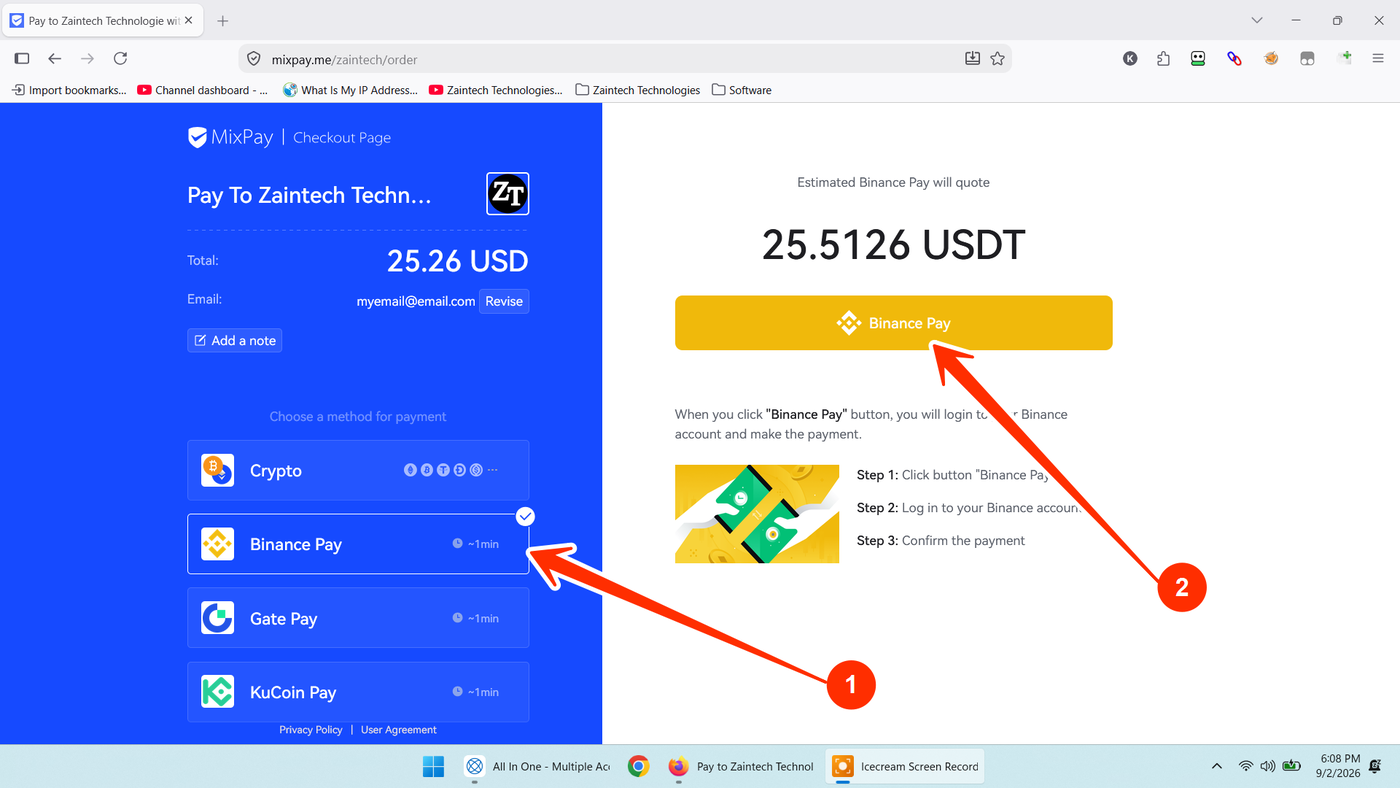
How to Pay via Binance Pay
If you have a Binance account with an available balance, you can pay instantly without manual address copying:
Select "Binance Pay" from the payment methods list on the left (arrow 1).
Click the yellow "Binance Pay" button in the main panel (arrow 2).
Log in to your Binance account in the official authentication window.
Review the transaction summary and confirm the payment pin/verification. The order will be cleared automatically in seconds.
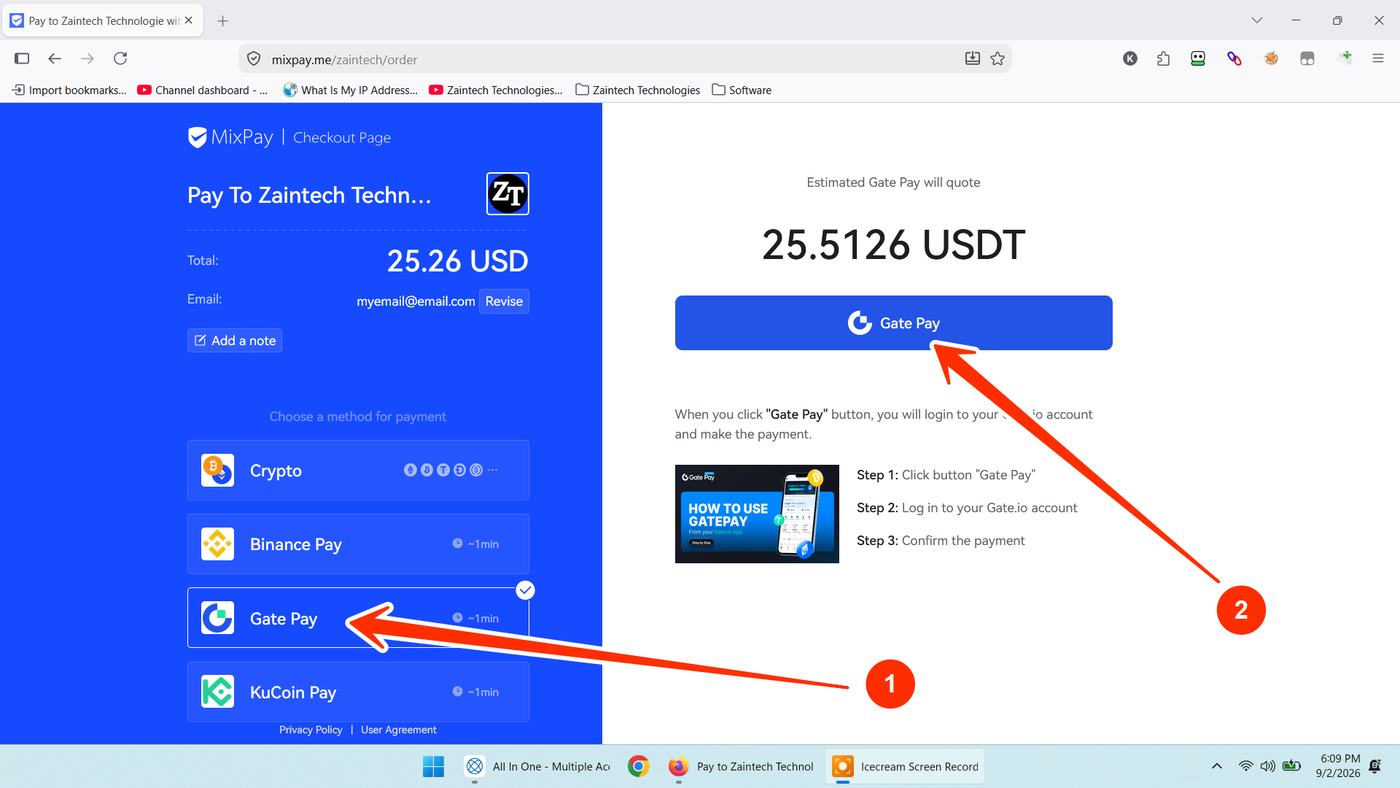
How to Pay via Gate Pay
If you use Gate, you can settle your order directly from your Gate account:
Select "Gate Pay" from the payment methods list on the left (arrow 1).
Click the blue "Gate Pay" button (arrow 2).
Log in to your Gate account when prompted.
Confirm the transaction to complete your checkout instantly without on-chain gas fees.
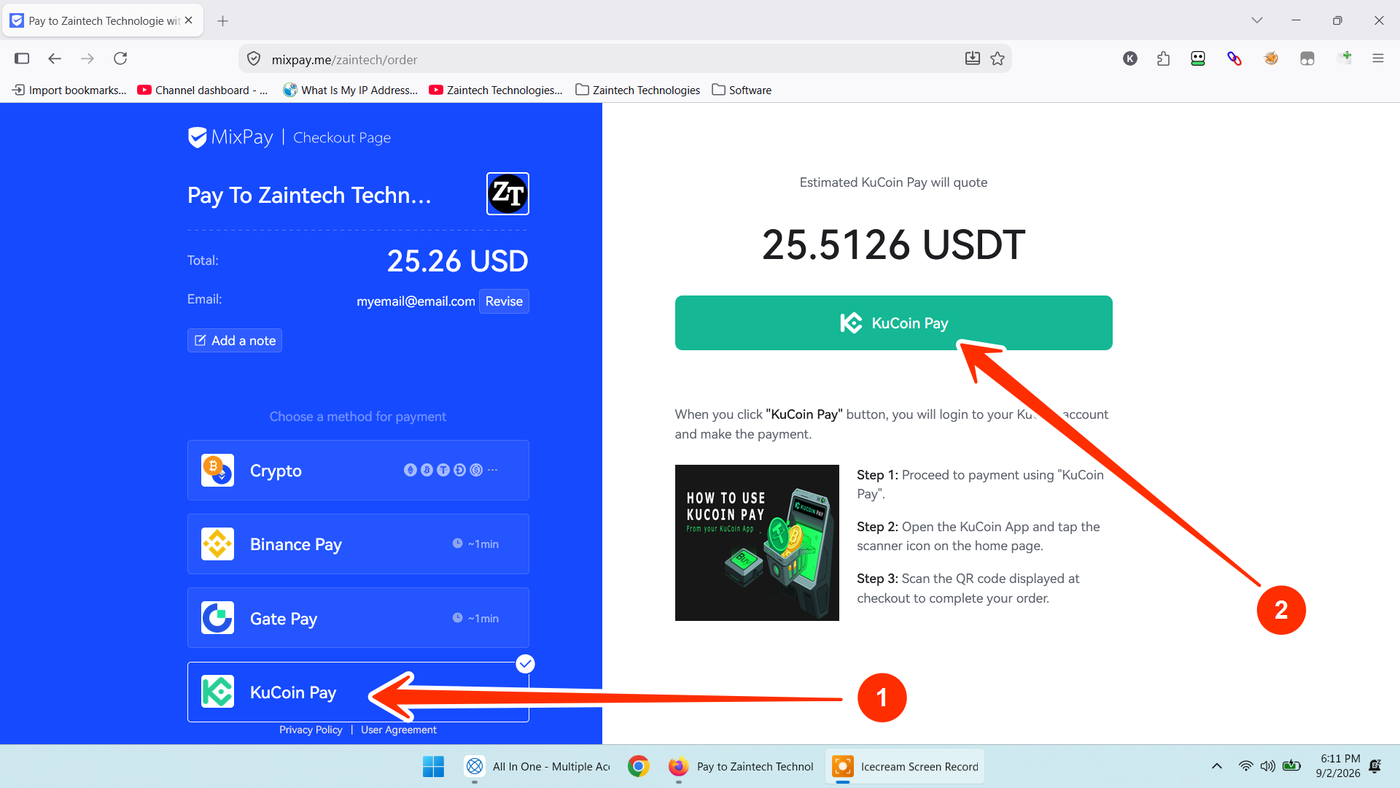
How to Pay via KuCoin Pay
If you use KuCoin, pay effortlessly using the mobile app scanner:
Select "KuCoin Pay" from the payment methods list on the left (arrow 1).
Click the green "KuCoin Pay" button (arrow 2).
Open your KuCoin App on your smartphone and tap the Scanner icon on the home screen.
Scan the checkout QR code and authorize the payment in your app to complete your order.
After Payment: Verification & Instant Order Authorization
Once you have completed your payment, follow these final steps to ensure the fastest processing and delivery of your order:
Save Your Transaction Details: Always take a clear screenshot of the completed payment screen and copy your Transaction Hash / TxID / Order ID.
Copy the Direct Transaction Link: Whenever possible, copy and share the direct transaction URL (from BscScan, TronScan, Etherscan, or your exchange withdrawal history) along with the screenshot. Typing a 64-character hash from a small image creates delays, whereas clicking a link allows our team to confirm your transaction immediately.
Share Details with Customer Support: Send your Order Number, payment screenshot, and transaction link directly via our instant support channels:
WhatsApp Support: https://z-t.biz/whatsapp
Telegram Support: https://z-t.biz/telegram
Our authorization team will verify the payment and release your digital licenses or voucher keys into your website account dashboard within minutes!