

Applies to: Zaintech.pk and 247giftcards.store
Both websites operate on the exact same platform. The steps below work identically whether you made your purchase on Zaintech.pk or 247giftcards.store.
Once your order is processed, your digital license keys, gift card codes, and files are available directly in your customer account.
Follow these simple steps to access and download your codes:
Step 1: Open the Website & Log In
Visit the website where you placed your order (Zaintech.pk or 247giftcards.store).
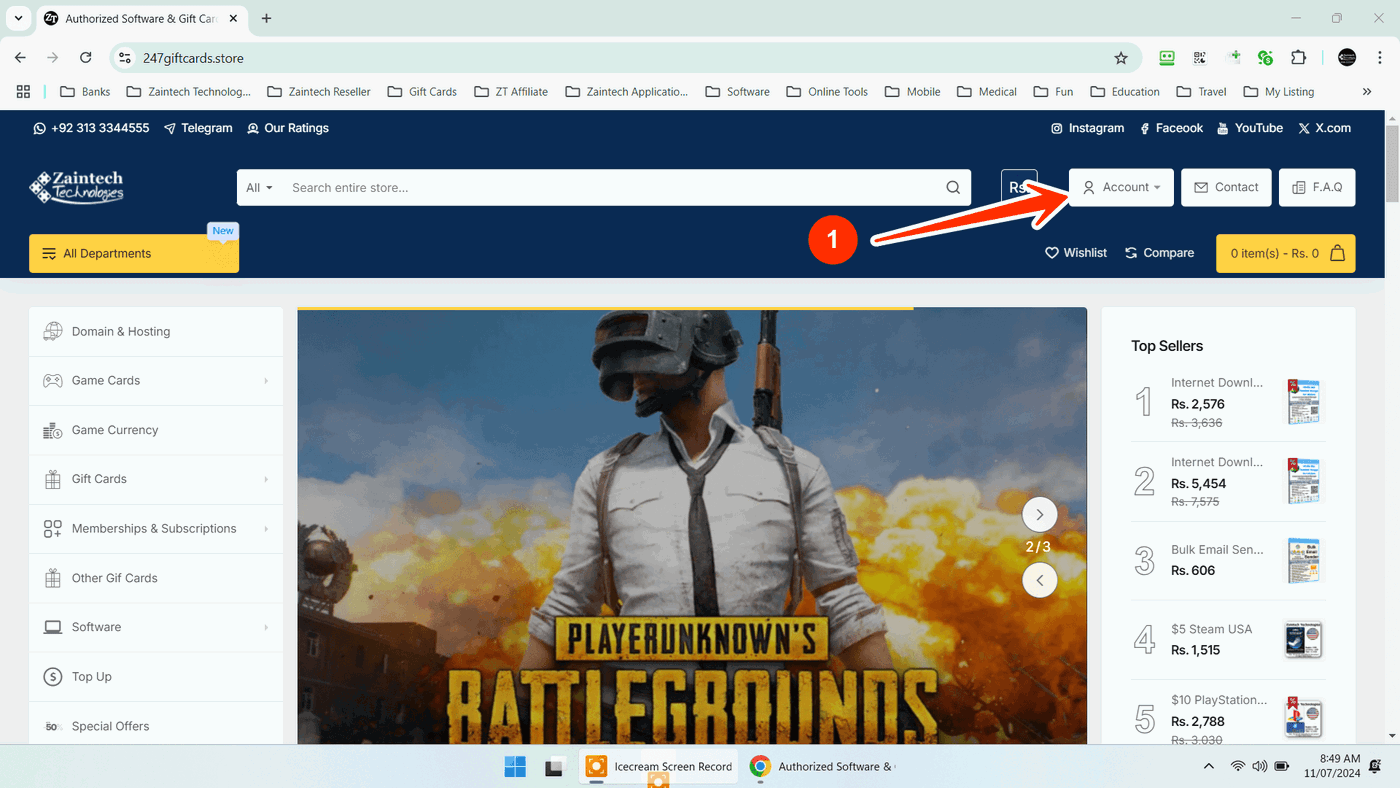
Click on the Account icon at the top of the page.
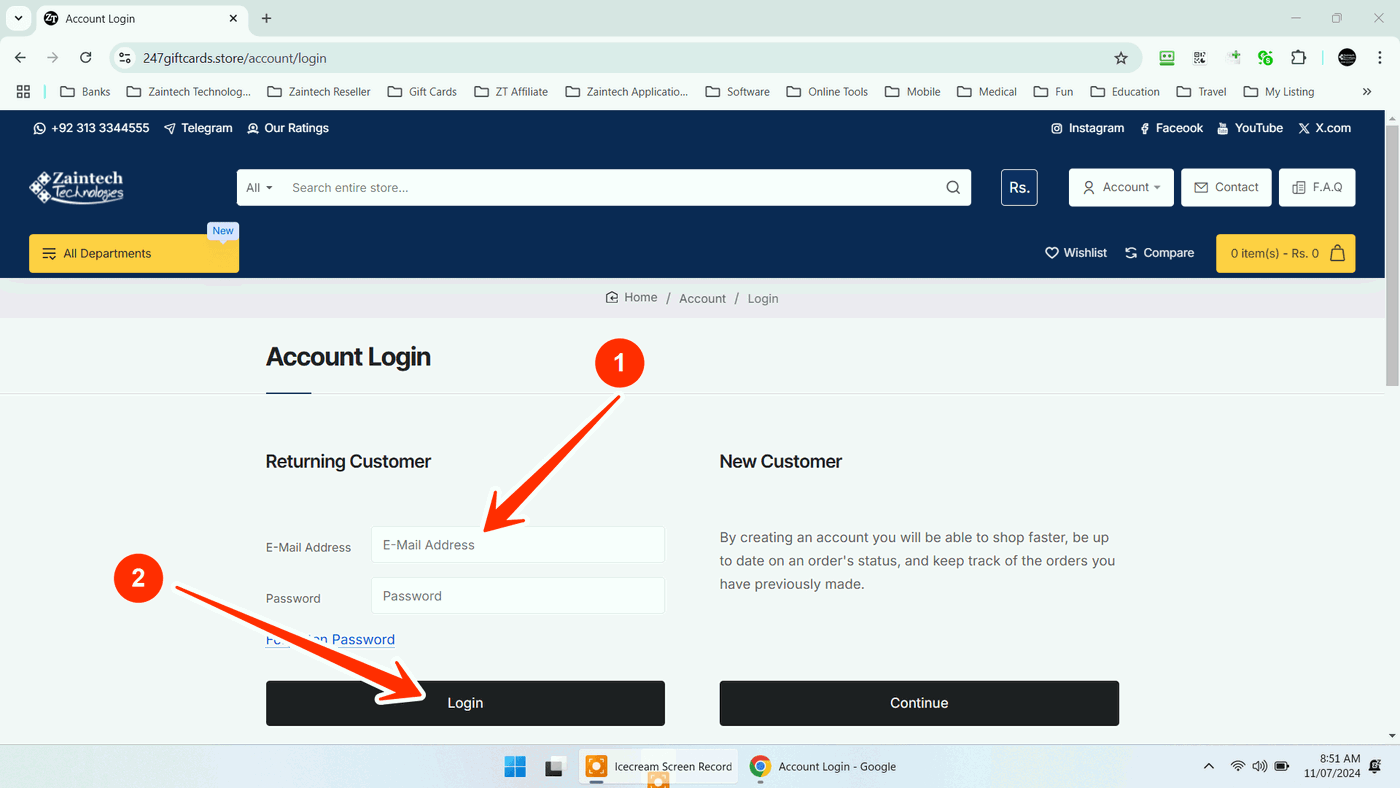
Enter your registered email address and password, then click Login.
Step 2: Verify Your Order Status
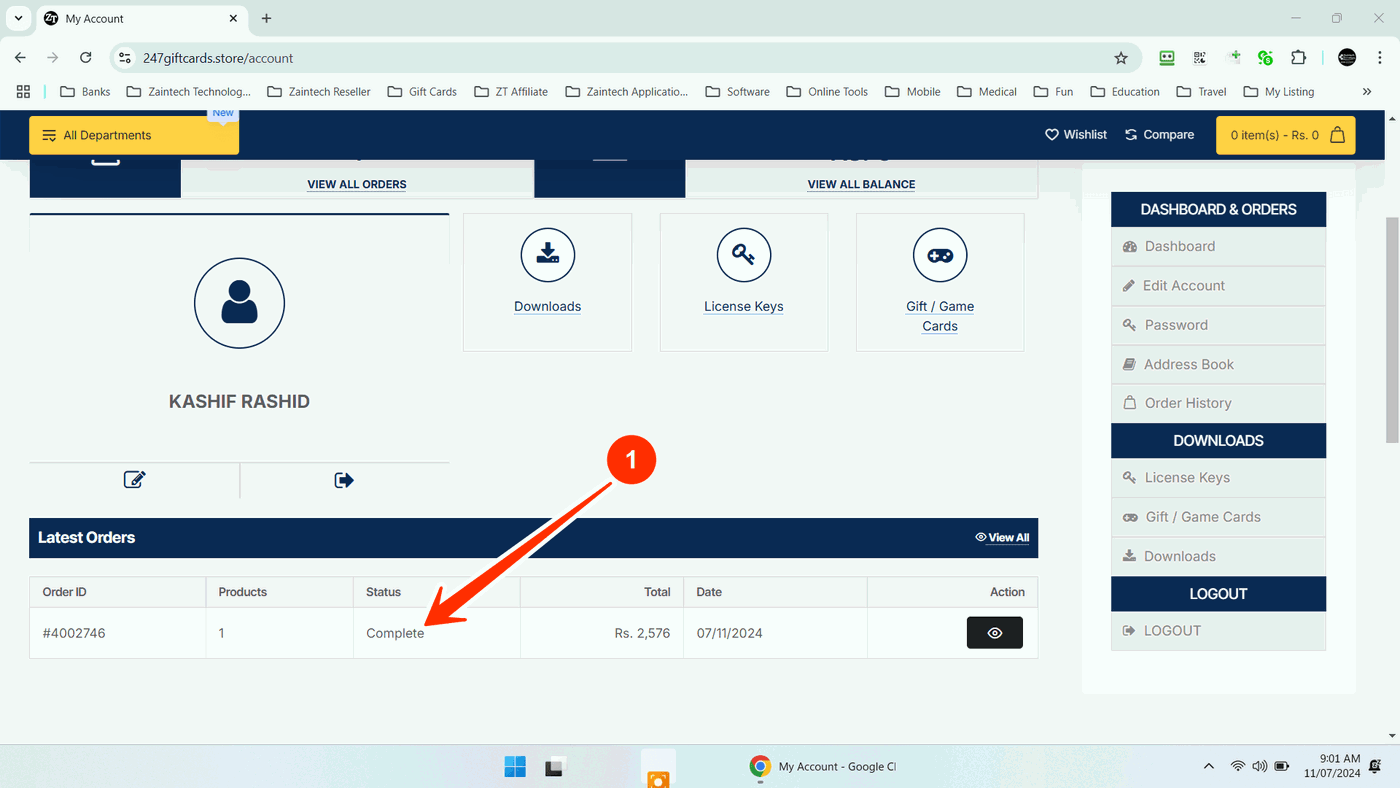
Digital codes and downloads are available only when your order status shows "Completed".
Check your dashboard to ensure the order is marked as Completed.
If it is still processing, please wait a few moments for payment confirmation.
Step 3: Choose Your Product Section
Navigate to your specific purchase type in your account menu:
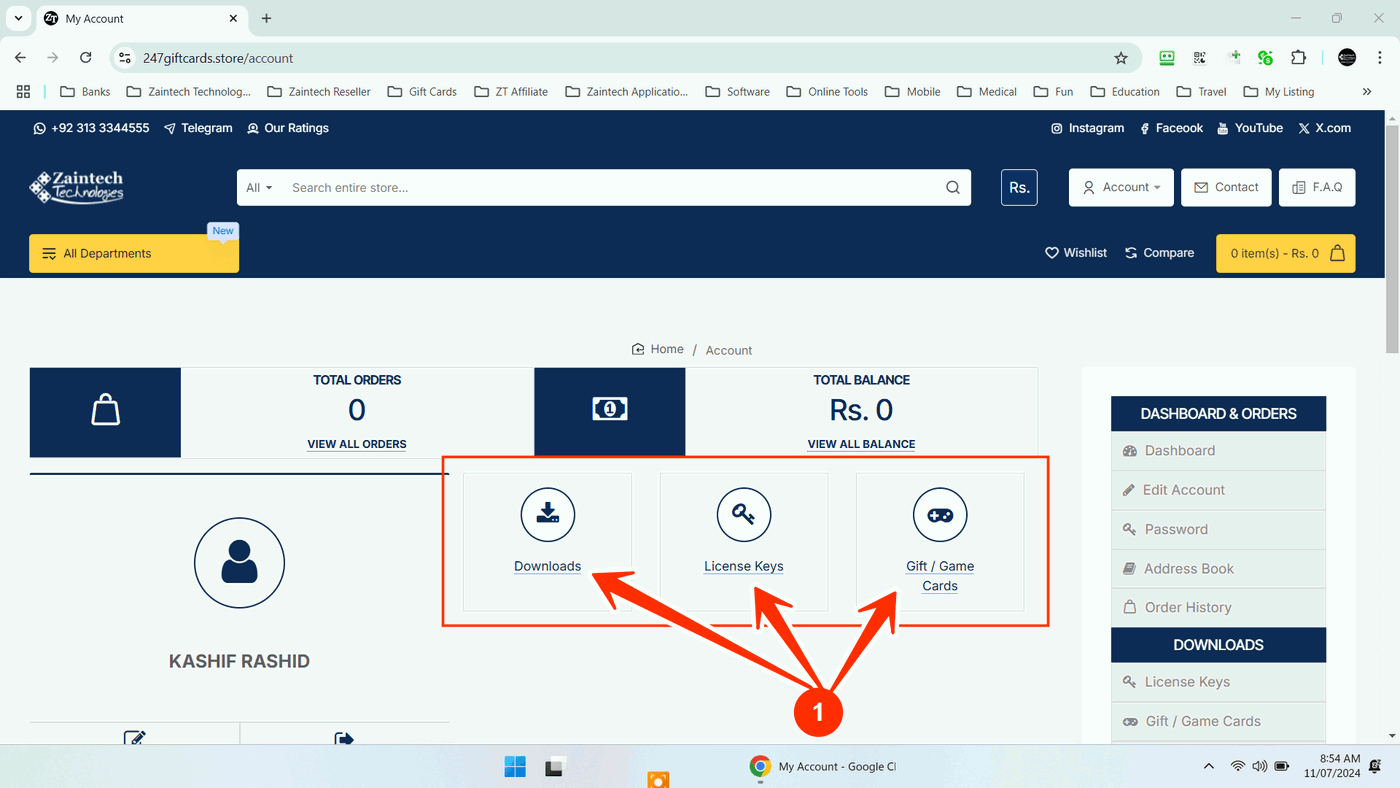
For software installation files: Click Downloads.
For software serials and activation codes: Click License Keys.
For digital vouchers and gaming credits: Click Gift / Game Cards.
Step 4: Download Your File
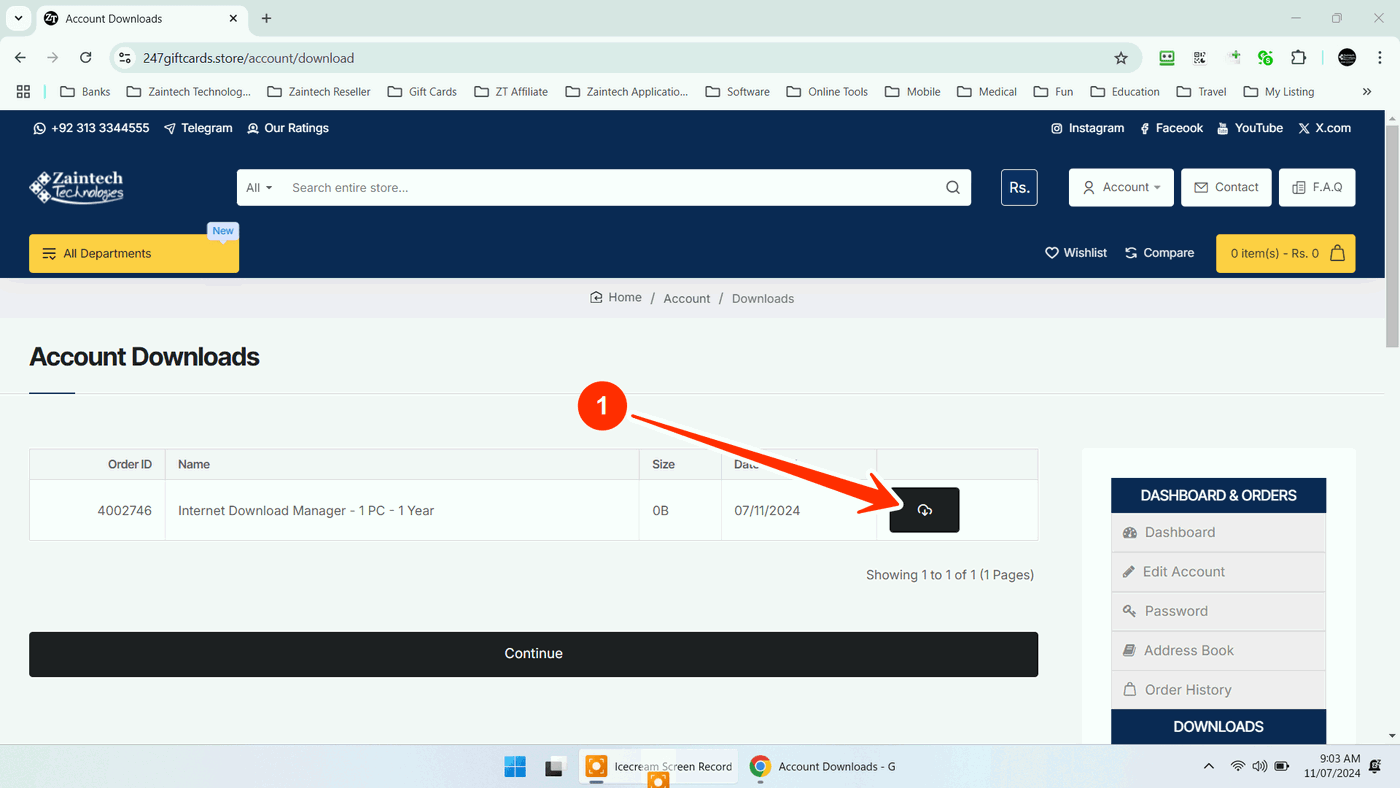
Click the Cloud Download icon next to your completed order item to save the file to your computer or phone.
Step 5: Open Your Text File & Copy Your Code
Open your device's Downloads folder.
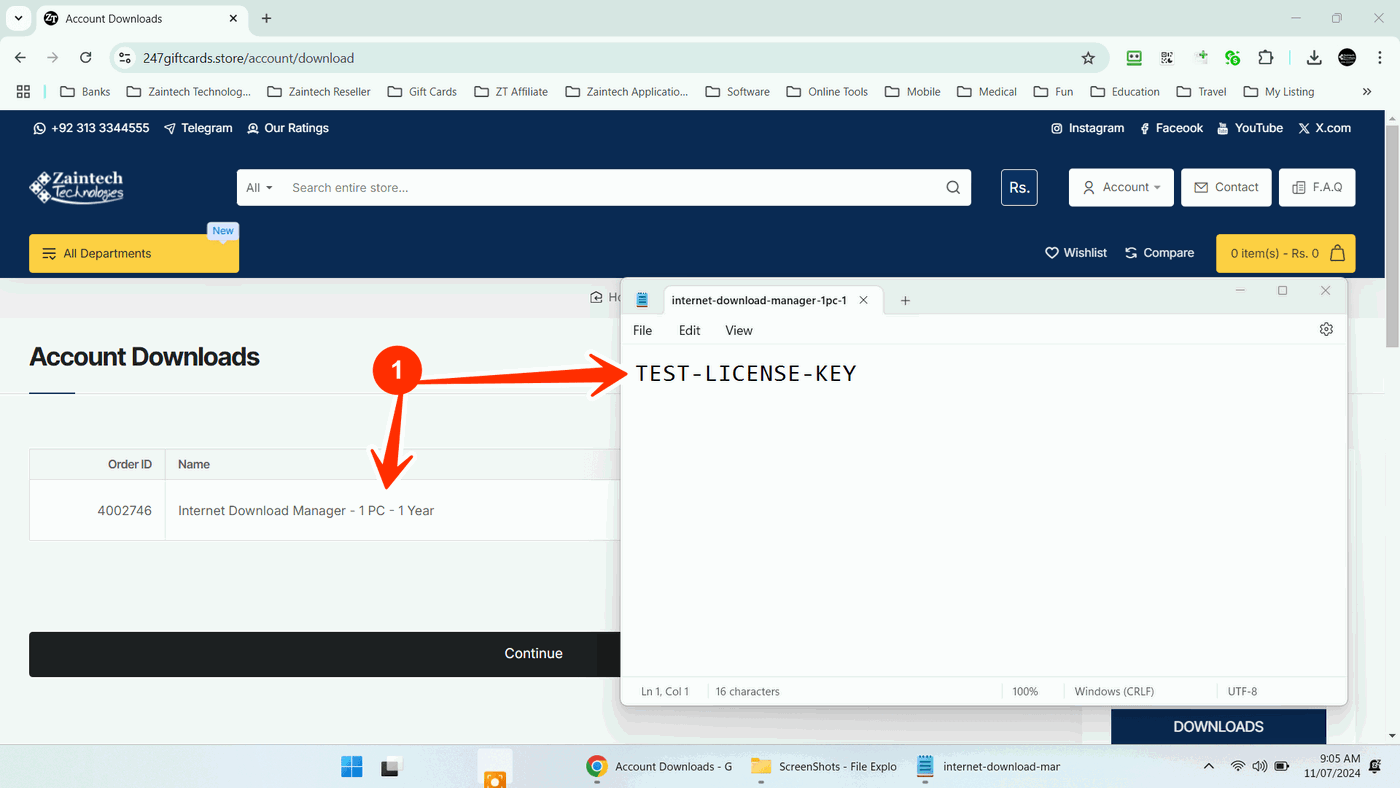
Locate and open the downloaded .txt (Text) file.
Your license key, voucher code, or redemption details will be clearly listed inside.
Tip: Keep this text file saved safely on your device for future reference and reinstallation. If you ever need help redeeming your code, contact our support team with your Order ID!