

Applies to: Zaintech.pk and 247giftcards.store
Both websites run on the exact same platform. The steps below work identically whether you are creating an account on Zaintech.pk or 247giftcards.store.
Creating an account gives you full access to your purchased digital keys, order history, and downloadable invoices.
Follow these simple steps to register and verify your account:
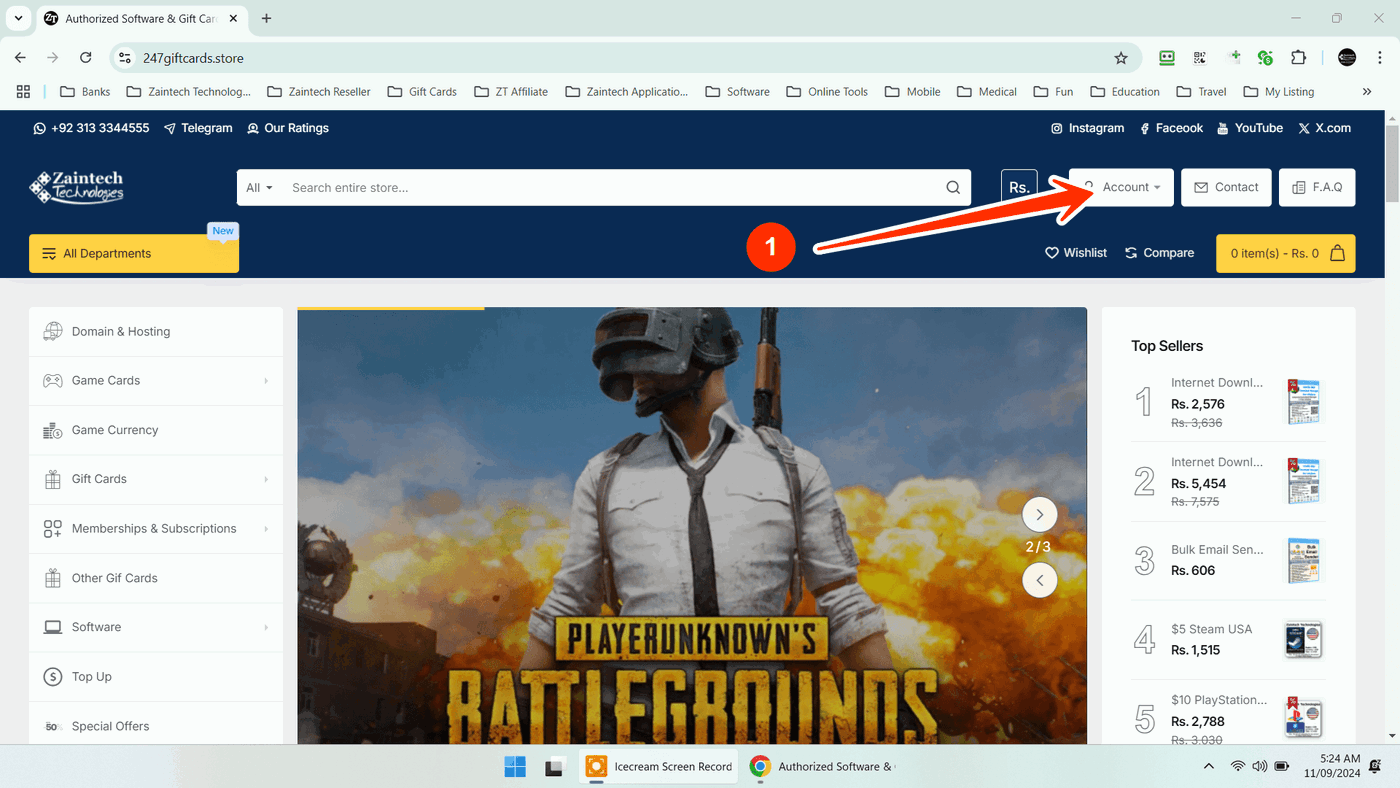
Step 1: Open the Account Menu
Click on the Account button located at the top-right corner of the website.
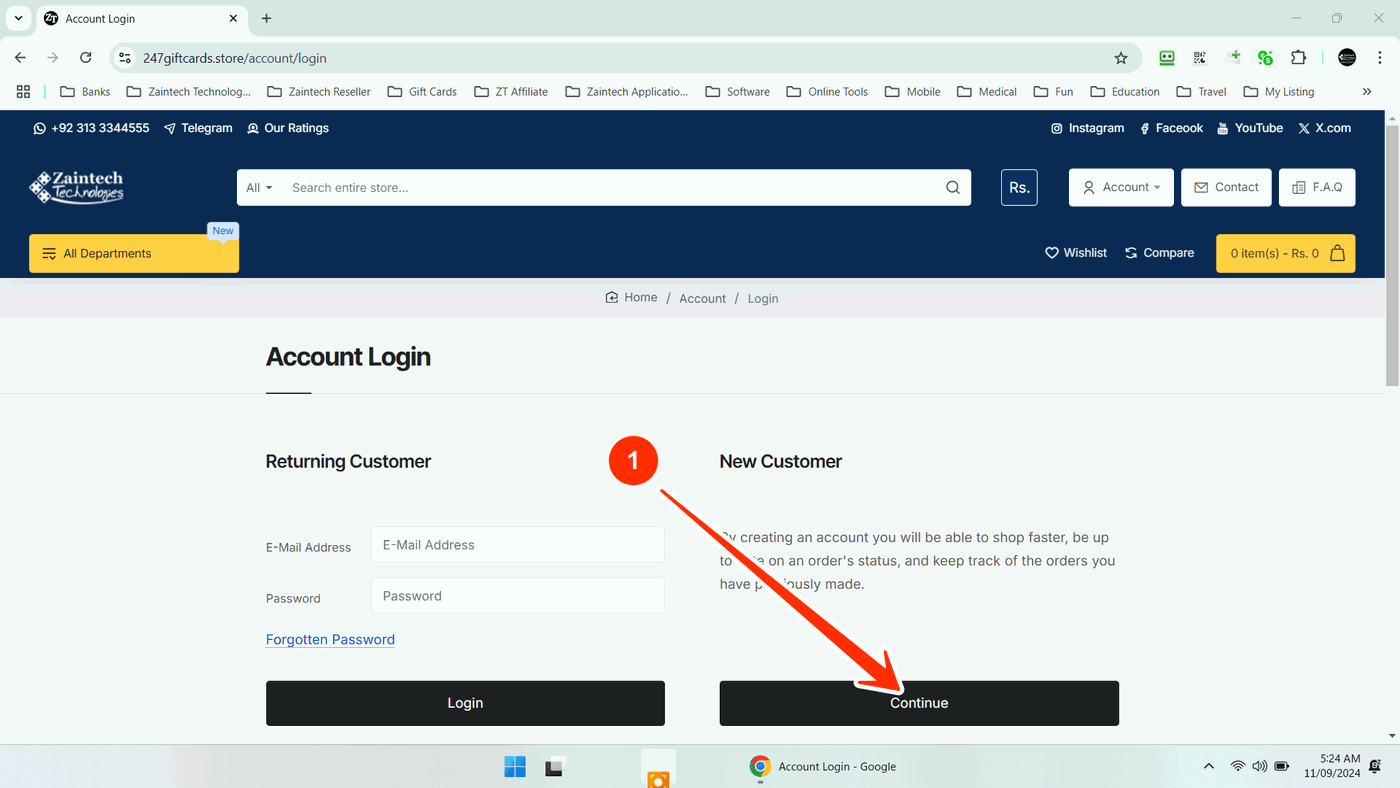
Step 2: Choose "New Customer"
You will see two sections: Returning Customer and New Customer. Under the New Customer section, click the Continue button.
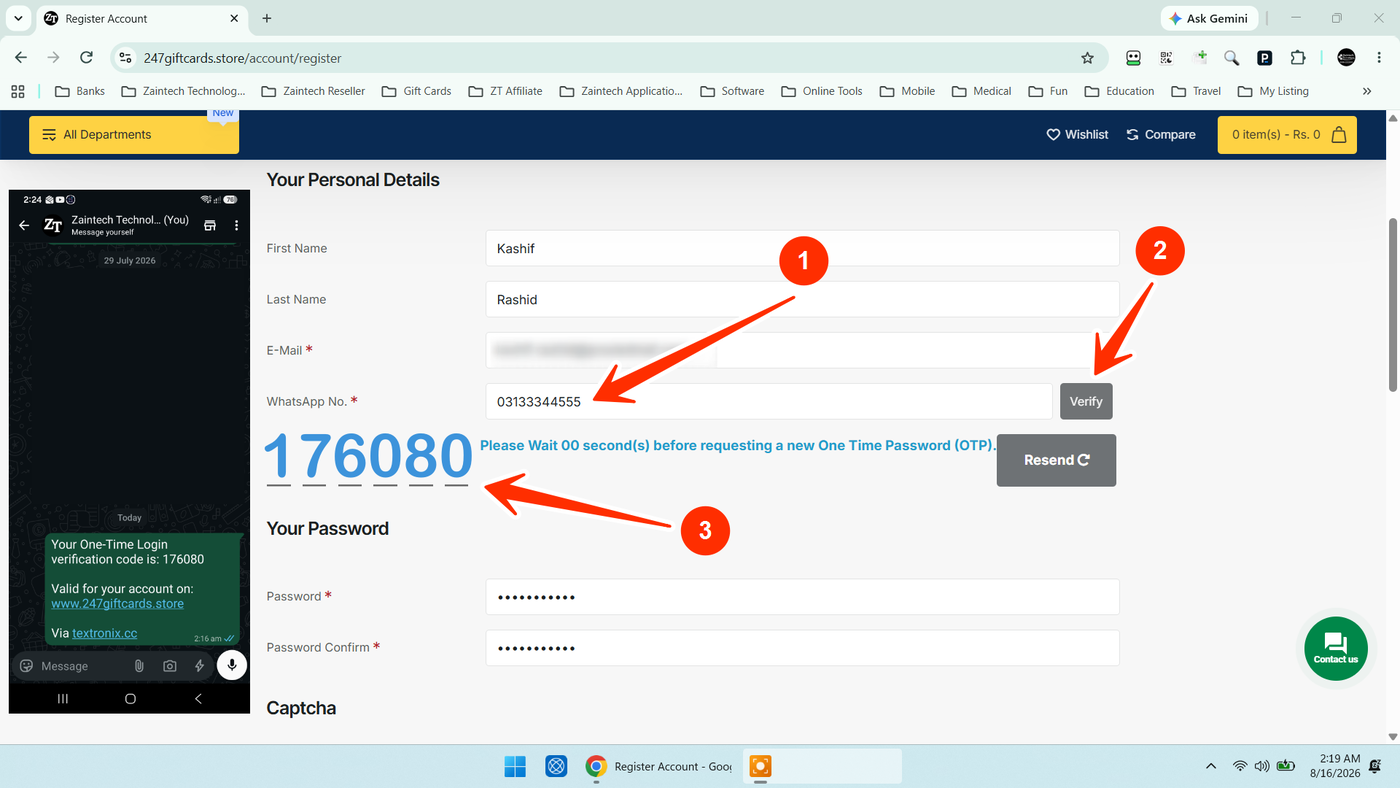
Step 3: Enter Your Details & Verify WhatsApp Number
Fill out your registration form in the following order:
First Name & Last Name: Enter your full legal name.
Email Address: Make sure your email is active and typed correctly to receive order licenses.
WhatsApp Number: Enter your active WhatsApp number.
International customers must include their complete country code (e.g.,
+1...,+44...,+97...).
Verify WhatsApp OTP:
Click the Verify button next to your WhatsApp number.
You will instantly receive a one-time password (OTP code) on your WhatsApp.
Enter the OTP code into the verification box on the screen to confirm your number.
Important: WhatsApp verification is mandatory. You cannot proceed to the next step without completing this verification. Do not check the Captcha box until your WhatsApp number is fully verified.
Password: Choose a secure password for your account and confirm it.
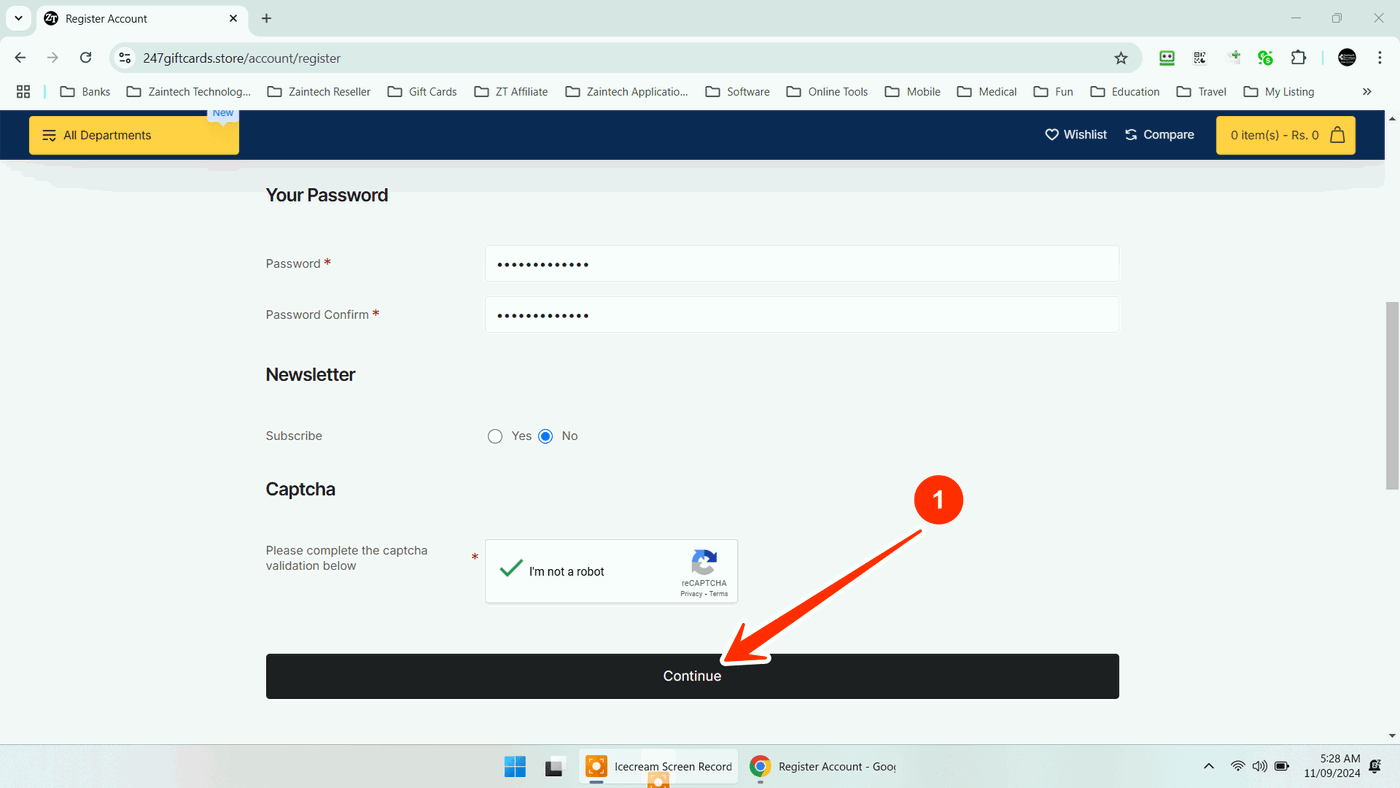
Step 4: Complete the Captcha & Submit
Once all your form details and WhatsApp verification are completed, check the Google reCAPTCHA box ("I'm not a robot") and click Continue.
Step 5: Account Created Notification
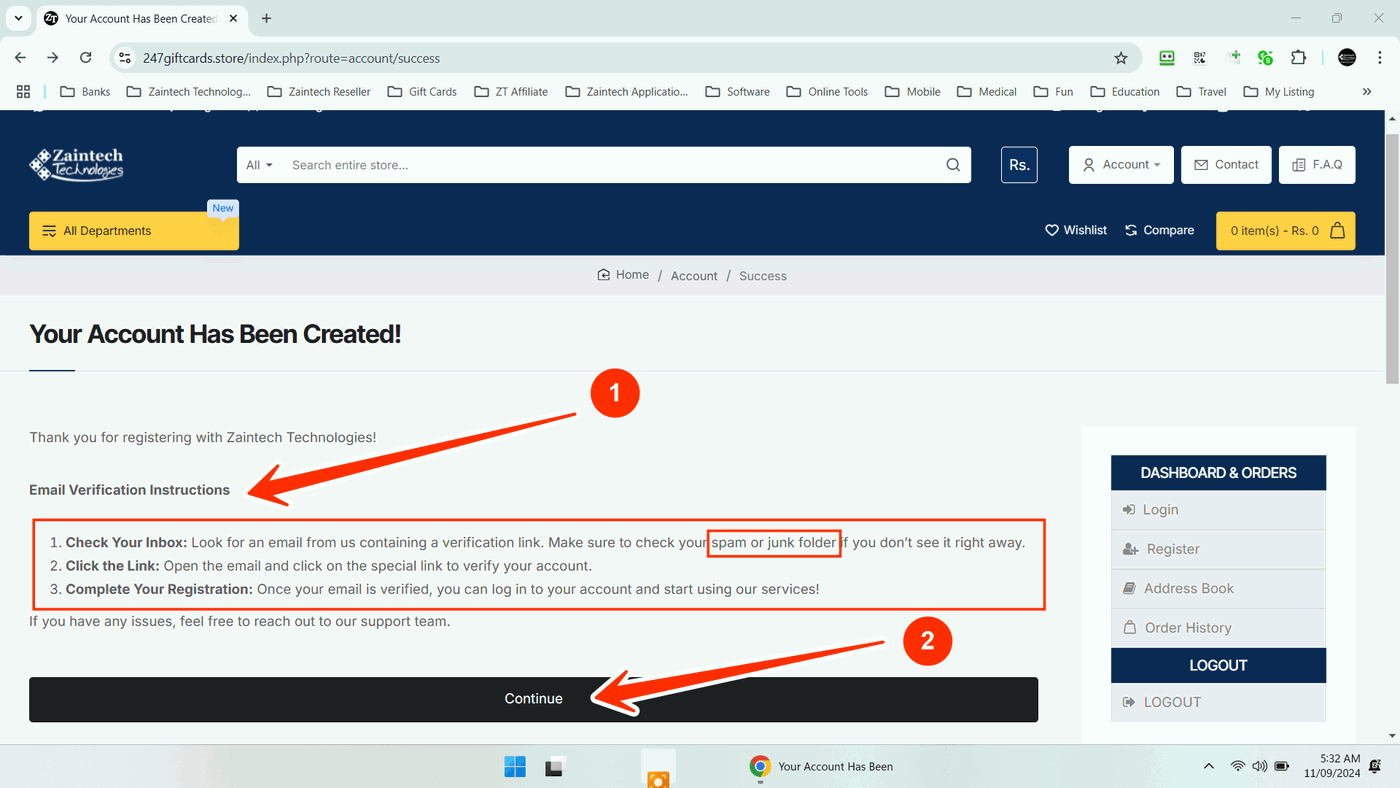
You will see a confirmation screen letting you know that your account registration has been submitted.
Step 6: Check Your Email Inbox
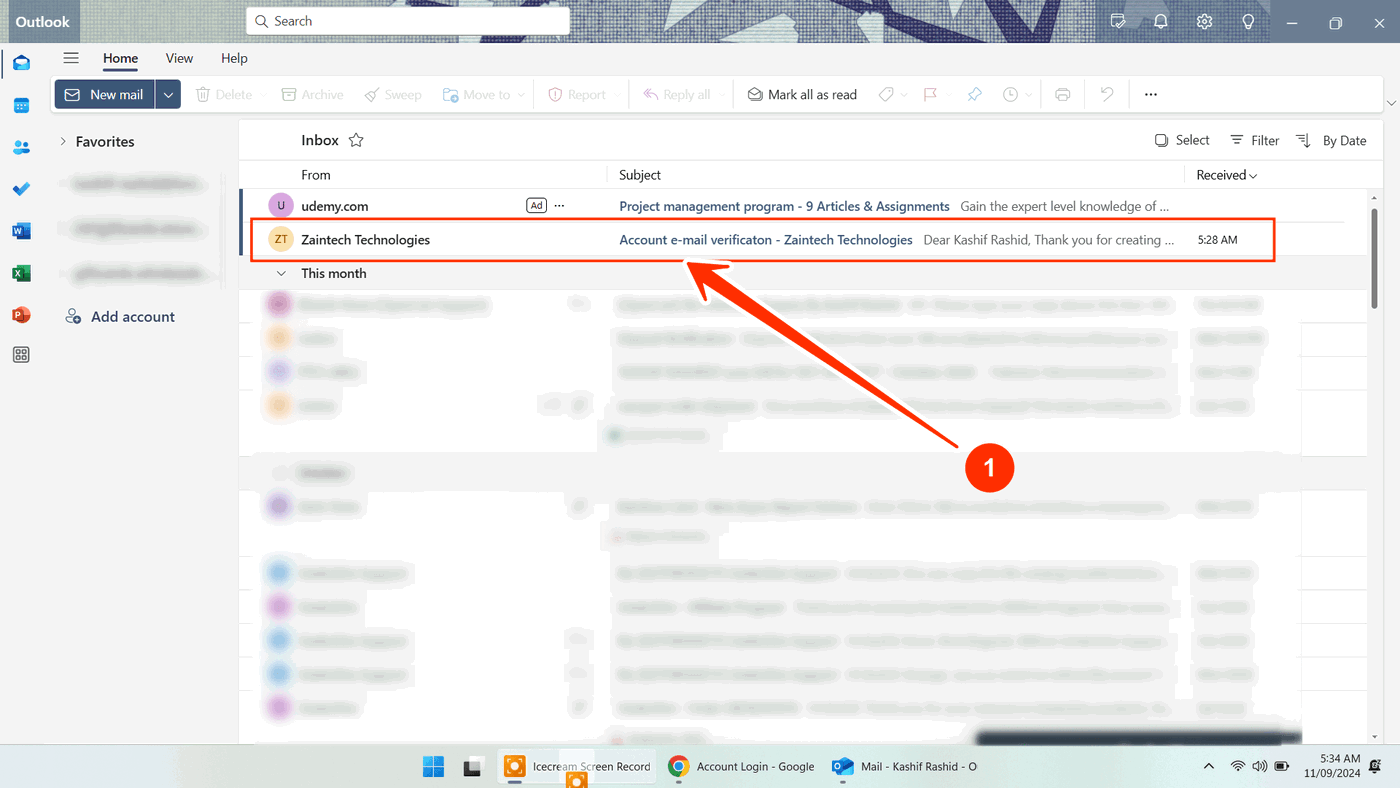
Open your email app to find your verification email from us.
Tip: If you do not see the email in your primary inbox within 2 minutes, please check your Spam or Junk folder.
Step 7: Confirm Your Email Address
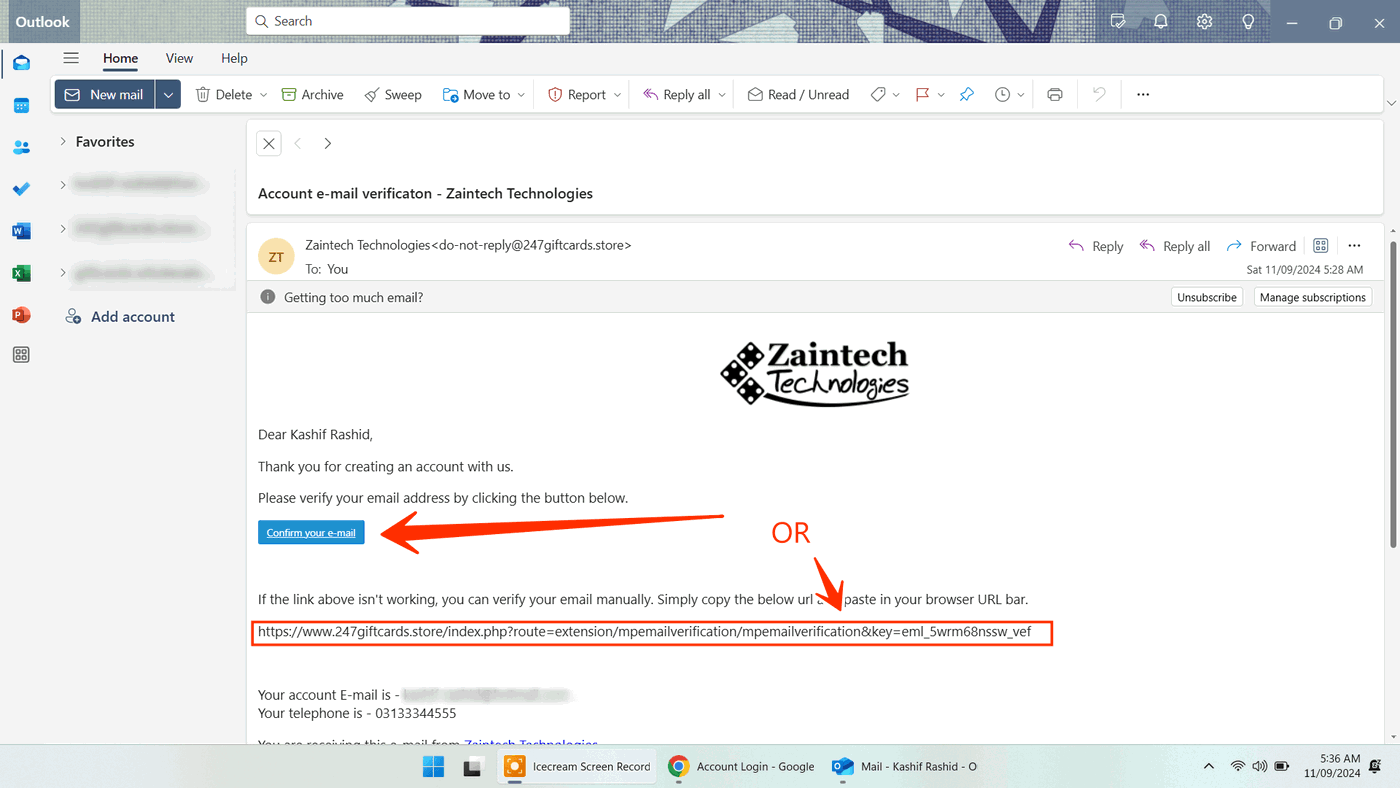
Open the email and click the blue Confirm Your Email button. You can also copy the verification link provided inside the email and paste it into your browser.
Step 8: Successful Verification
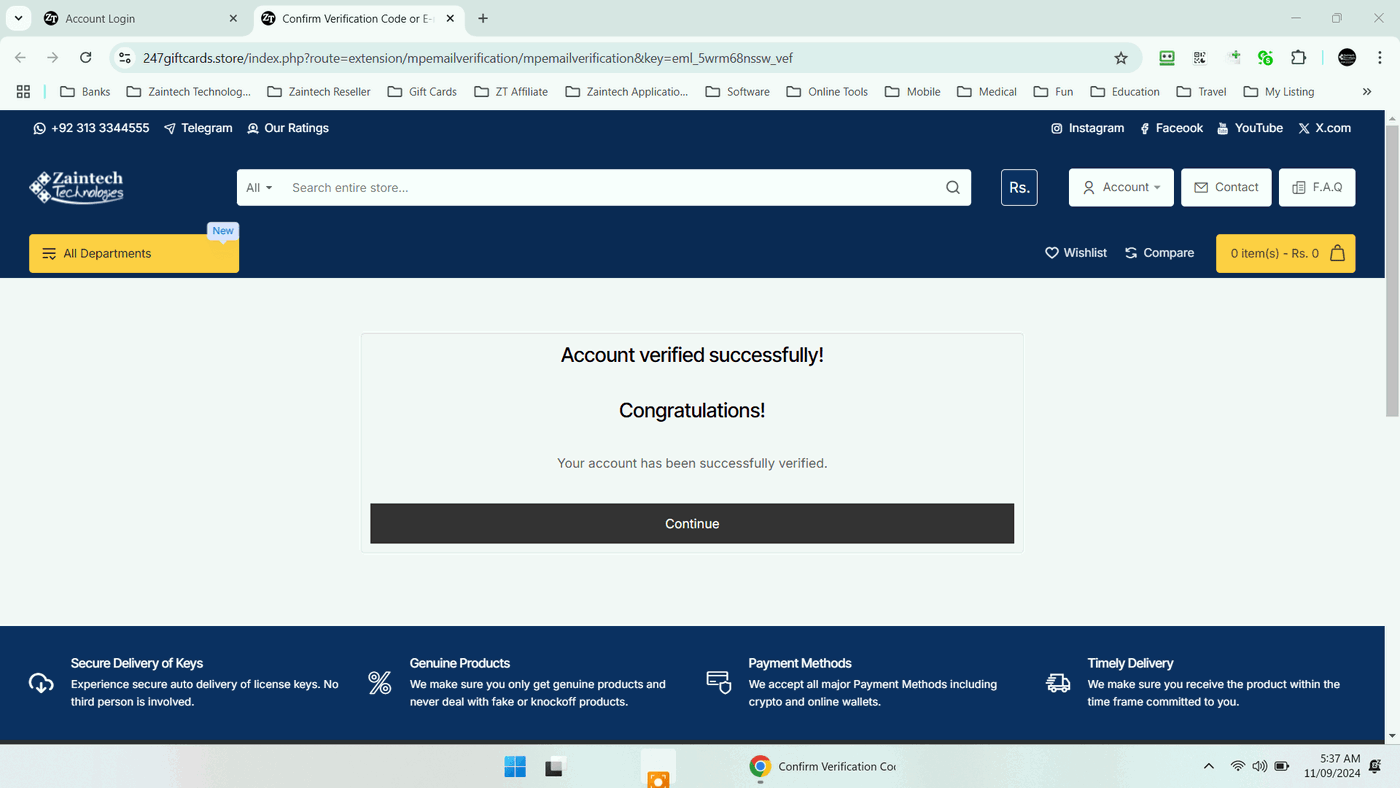
Your browser will open a page displaying "Account verified successfully". Your email address is now active and confirmed.
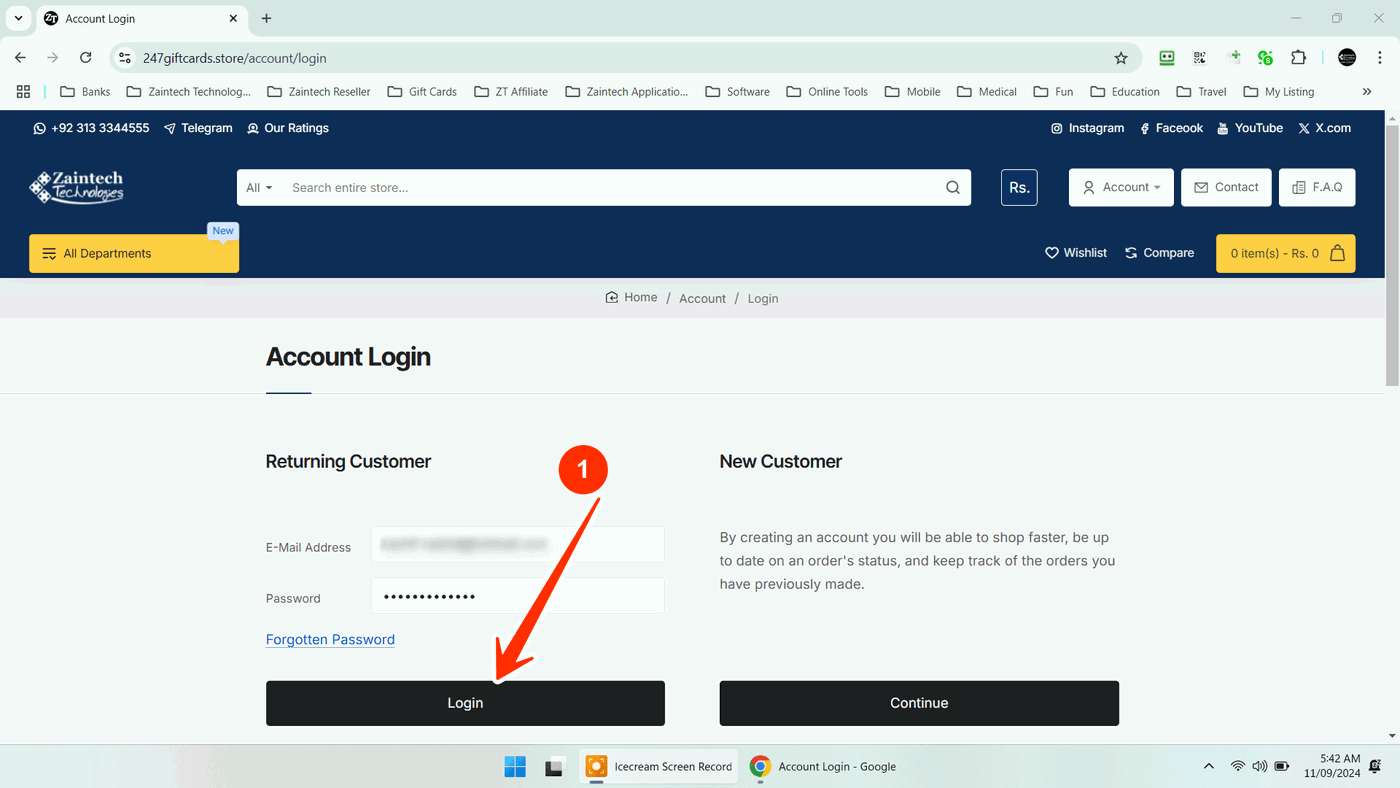
Step 9: Log In to Your Account
Click Continue to go to the login screen. Enter your registered Email Address and Password, then click Login.
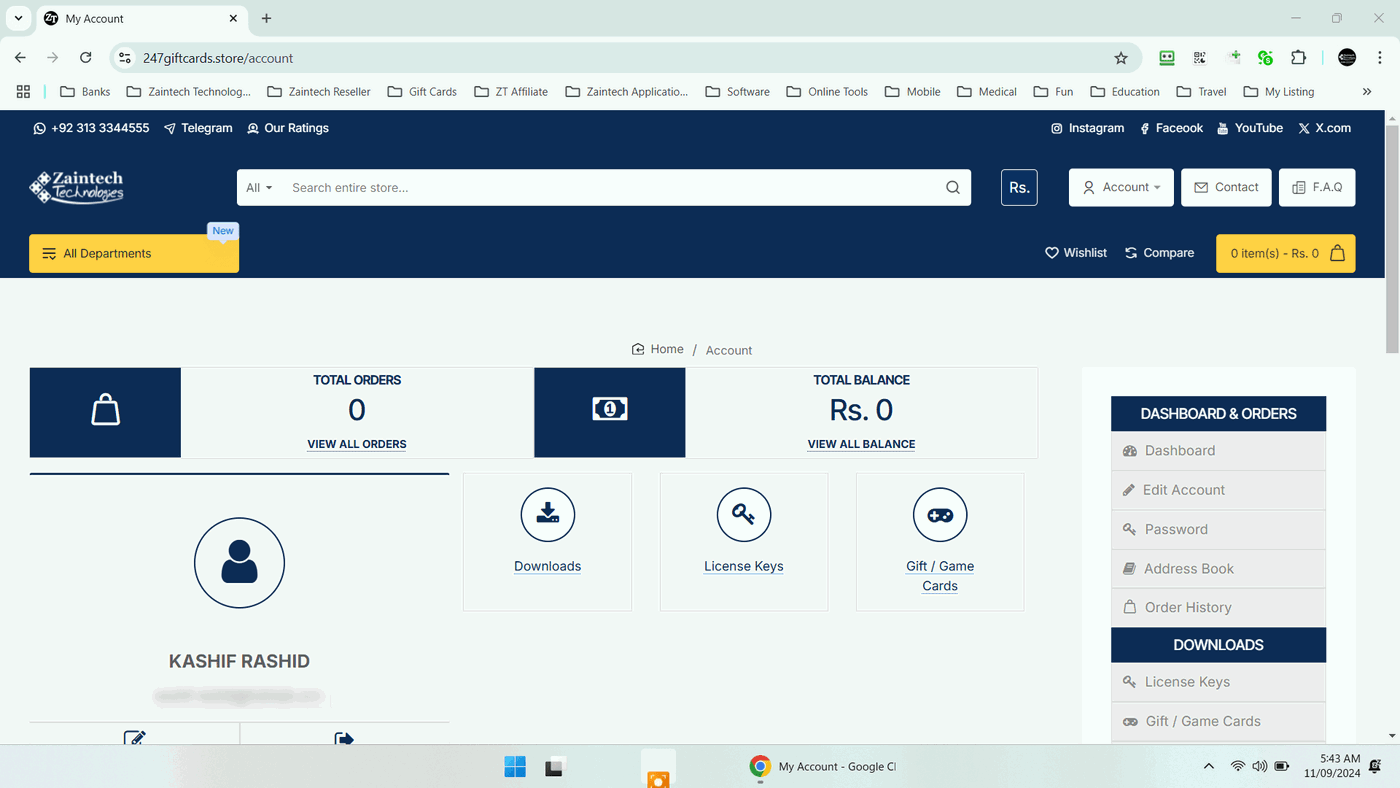
Step 10: Access Your Dashboard & Start Shopping
You are now logged into your Customer Dashboard! You can view your account profile, manage saved settings, and start placing orders for software keys, gift cards, and subscriptions.
Need Help? If you experience any delay receiving your WhatsApp OTP or email confirmation, feel free to contact our customer support team for fast assistance.