

Common questions answered in this guide:
How do I redeem my newly purchased Norton product key?
How do I extend or renew my expired Norton service using a activation code?
Whether you are setting up Norton for the very first time or renewing an existing subscription that has expired, the activation process is exactly the same. Follow the steps below to bind your license key to your account.
Step 1: Open the Official Norton Setup Page
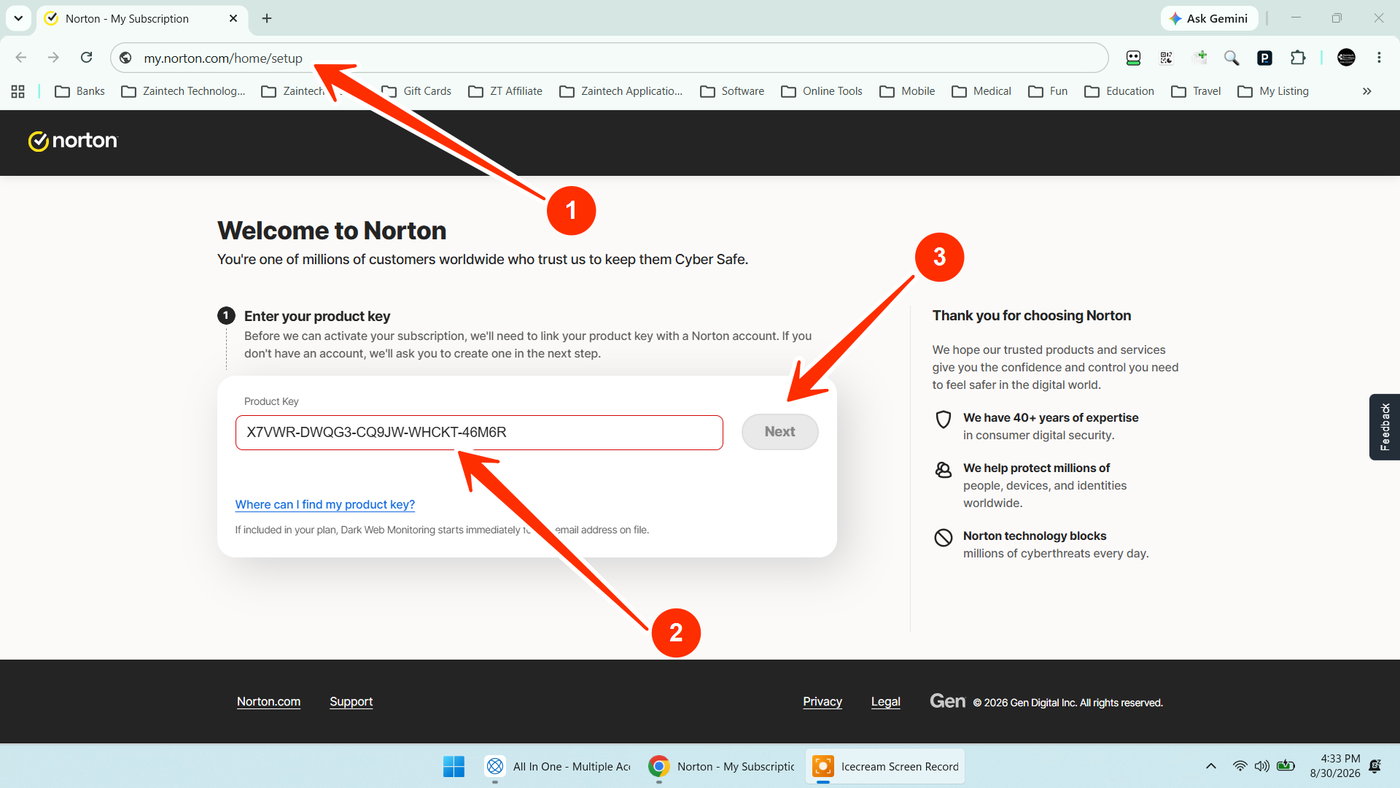
To begin, click or copy the official Norton setup link below into your web browser:
https://my.norton.com/home/setup
Step 2: Enter Your Product Key
Once the page loads, look for the Enter your product key field.
Carefully type or paste the 25-character activation code you received from us.
Click the Next button.
Step 3: Sign In or Create a New Account
After clicking Next, Norton will ask you to link the product key to an account.
For Existing Users (Renewing/Extending): If you already use Norton and want to renew your service, simply sign in using your existing Norton account email and password. Your new time will be added to your account.
For New Users (First-Time Setup): If you do not have a Norton account, follow the on-screen prompts to create one. Enter a valid email address and create a secure password.
Step 4: Verify and Access Your Dashboard
If you created a new account, check your email inbox for a verification link from Norton and confirm your address.
Once signed in, you will be redirected to your Norton Dashboard.
Your active subscription will now be visible, and your product is officially activated.
From this dashboard, you can immediately download the Norton software to your PC, Mac, or mobile device.
Need Help or Have Questions?
If you encounter any errors (such as an "invalid key" message) while redeeming your code, ensure there are no accidental blank spaces copied with your key. For further assistance, contact our support team with your Order ID:
WhatsApp Support: https://z-t.biz/whatsapp
Telegram Support: https://z-t.biz/telegram